Getting started
Homebrew (Recommended)
# Add the tap (first time only)
brew tap geiserx/vpn-bypass

# Trust the tap (first time only, required on Homebrew 6+)
brew trust --cask geiserx/vpn-bypass/vpn-bypass

# Install VPN Bypass
brew install --cask vpn-bypass
The tap is the canonical install path: it tracks the latest release and updates with brew upgrade. On Homebrew 6+, trust the tap first (as shown above) or the install will be blocked.
Do not install the raw Casks/vpn-bypass.rb from this repository; it is a frozen snapshot and installs an old build.
Manual Download
Download the latest .dmg from Releases, open it, and drag VPN Bypass to your Applications folder.
Build from Source
# Clone the repository
git clone https://github.com/GeiserX/VPN-Bypass.git
cd VPN-Bypass

# Build and create release DMG
make release

# Or just build and run
make run
Xcode
Open Package.swift in Xcode and run the project.
First run
- Open VPN Bypass from Applications. It lives in the menu bar; there is no Dock icon.
- macOS asks for an administrator password once. That installs the root helper that edits the routing table. On macOS 13 and later it may also ask you to allow VPN Bypass under System Settings > General > Login Items; the app says so in its dropdown when that is the case.
- Connect your VPN. The dropdown reads VPN Connected and names the client it found.
A fresh install routes nothing. The pill in the dropdown reads NOT SET UP, and the dropdown asks "What should skip the VPN?" with six common services, each with a switch, a row for all the services, and a field to add a site.
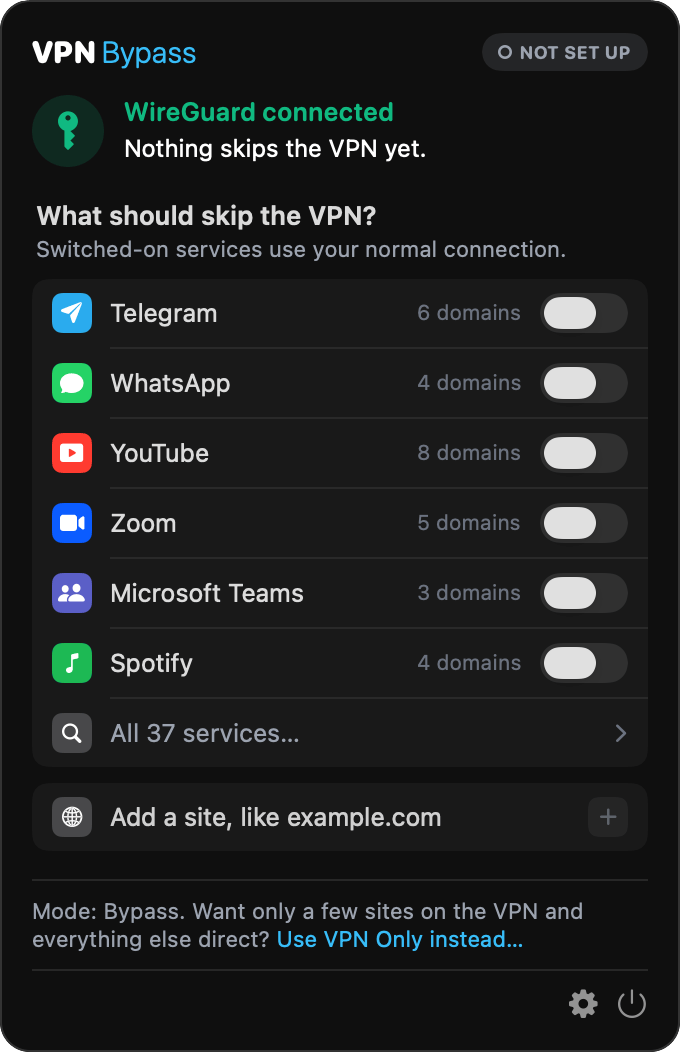
Switch on a service there, or type a site into the field and press Return. "All 37 services…" opens Settings on the Services page. If you want the opposite, only a few sites on the VPN, click "Use VPN Only instead…". It worked when:
- the pill reads ON;
- the menu bar mark shows its arrow head (it is two plain lines and a bar while nothing is routed);
- the question gives way to the normal dropdown, and the service or domain appears under Skipping the VPN with how many addresses it routes.
If the pill reads NOT ENFORCING, the helper is not running; Settings > Status shows its state, with an Install, Update or Retry button; the dropdown's Fix… button opens it. If macOS says the app is damaged, see Troubleshooting.
Requirements
- macOS 13.0 (Ventura) or later
- Admin privileges (for route management and hosts file)
Permissions
The app requires:
- Network access: To detect VPN connections and resolve domains
- Admin privileges: To add routes and modify /etc/hosts (prompted when needed)
- Notifications: Optional, for VPN status alerts (prompted on first launch)