Usage
Two words mean one thing each on screen. A route is a way out for traffic in Custom mode: Direct, your VPN, a proxy or a Tailscale peer. An address is one IP address or range the app has sent a certain way; a service such as Telegram is several of them.
Menu bar
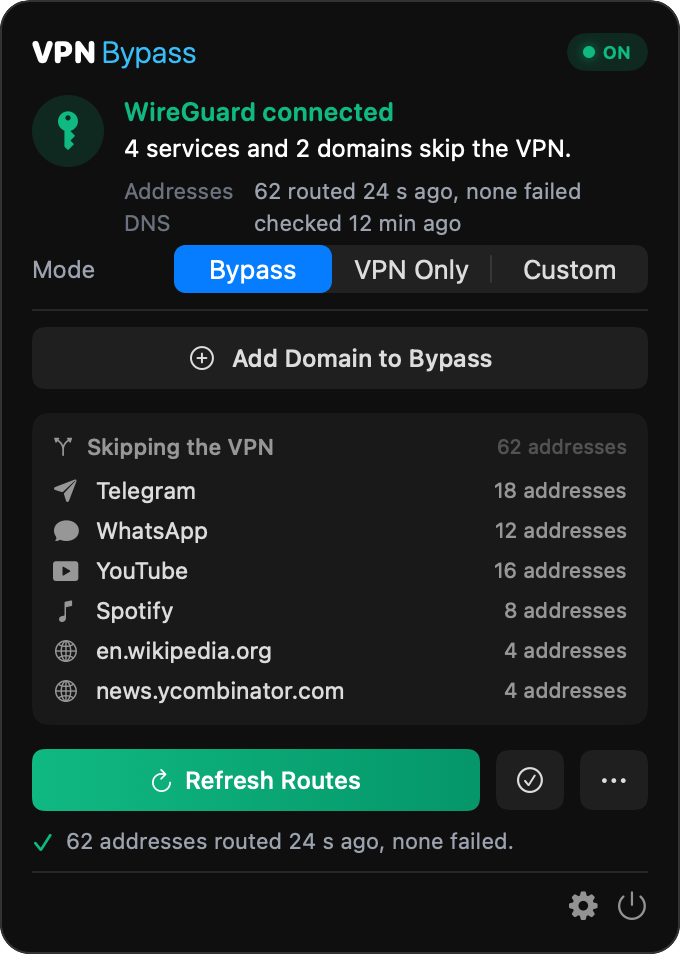
Click the VPN Bypass mark in the menu bar: two lines and a bar, with an arrow head on the top line while routes are enforced. The dropdown shows:
- a pill that reads ON, WAITING (the app waits for a reconnected tunnel to hold before it re-applies routes), HELD BACK (the tunnel dropped right after several applies, so the app is not applying until it has held for 30 minutes), NOTHING ROUTED (no address is routed), NOT SET UP (a fresh install with nothing configured), NOT ENFORCING (the helper is down) or OFF (no VPN);
- the VPN it found, one sentence on what your lists route, and two facts: how many addresses were last routed, when, and whether any failed, and when DNS was checked and runs next. While the pill reads WAITING or HELD BACK, the header says how long is left instead;
- on a fresh install in Bypass mode, in place of everything down to the gear: the question "What should skip the VPN?", six common services with their switches, a row that opens Settings on the Services page, a field to add a site, and a line that offers VPN Only. Once a service is on or a site is on the list, the normal dropdown below takes its place at once;
- the Mode control, with Bypass, VPN Only and Custom in every mode. Picking another mode asks first, and the selection moves only after you confirm. Entering Custom turns your lists into rules here too, when Custom has no rules yet and the current mode's list has an entry switched on, and the question says so only then, as the Settings sheet does;
- a field to add a domain to the current mode's list;
- what your lists route, one row per service, domain or IP range you added, with how many addresses it routes, under Skipping the VPN in Bypass or Through the VPN in VPN Only. Hover over a row to see its addresses. A row that routes no address while no apply is running or waiting after a reconnect gets an amber mark and "no addresses". In VPN Only the app's own catch-alls are one line, "Everything else: direct", and the counts leave them out: the card, the header's Addresses fact, the line under the buttons, the Status page's Addresses section and the Addresses Routed notification all count only the addresses your lists route. The one exception is Addresses owned under Tunnels on the Status page, a kernel tally of every route that carries the app's tag, catch-alls included. With only the catch-alls in place, the pill still reads ON, since everything else is routed direct. In Custom mode, Routes In Use comes first, then Routed by your rules lists the rules that routed an address. Addresses that no entry on your lists owns, such as those of an entry you just removed, are one "Left from earlier" line;
- Refresh Routes, a Verify Routes icon, and a "…" menu with Refresh Routes, Verify Routes, Re-resolve DNS Now, Open Logs, Settings…, Quit VPN Bypass and Remove All Routes…, which asks before it removes anything;
- after Verify Routes, a Route check card above the buttons. Verify pings at most 10 of the routed addresses: single addresses only, because ping cannot test a range, and the first 10 in sort order. The card says how many of how many addresses it checked, for example "Checked 10 of 62 addresses (single addresses only).", lists the addresses that did not answer first, up to three with what each is routed for and why it failed and then "+ N more", then one line for the rest with their response times. "Show all 10 results in Logs" opens Settings on the Logs page, where each address has its own line. With only address ranges routed, the card says there was nothing ping could check;
- one line under the buttons with the result of the last apply, for example "62 addresses routed 23 s ago, none failed";
- after a change made through
vpnbor an MCP server, a line at the foot that names it, for example "Last change: added en.wikipedia.org via the command line, 2 min ago". Click it to open Logs showing only the lines that came through the control socket. A change you make in the app removes the line; - the gear that opens Settings and the power button that quits the app.
Each time you open the dropdown, the app checks the VPN again and puts back any route macOS dropped, so the dropdown shows the state as it is now. It also runs the same check every 30 seconds, whether the dropdown is open or not, and while an alert such as the mode switch question waits for an answer.
While the dropdown is open, ⌘, opens Settings and ⌘Q quits. ⌘R refreshes routes only while the Refresh Routes button shows, which is when a VPN is connected; with no VPN, on first run and during the first check it does nothing. Holding ⌘R refreshes once. The "…" menu lists each shortcut next to its item, and the gear's and power button's tooltips name theirs.
Settings
Click the gear icon to access settings. The pages are in a toolbar under the title bar, and which ones appear depends on the mode. Status comes first in every mode and is the page Settings opens on. Bypass: Status, Domains, Services, General, Logs, Info. VPN Only: Status, Domains, General, Logs, Info. Custom: Status, Rules, Routes, General, Logs, Info.
The routing mode is the Mode menu at the right end of the title bar, for example "Mode Bypass". Picking another mode in it opens a sheet that lists the three modes, each with one sentence and what your lists hold for it ("4 services and 2 domains"). For Custom it says "Your lists become rules." when the switch will build them, which happens when Custom has no rules yet and the current mode's list has an entry switched on. Otherwise it says how many rules Custom has. Nothing changes until you click Switch, and the title bar keeps showing the mode in use until then.
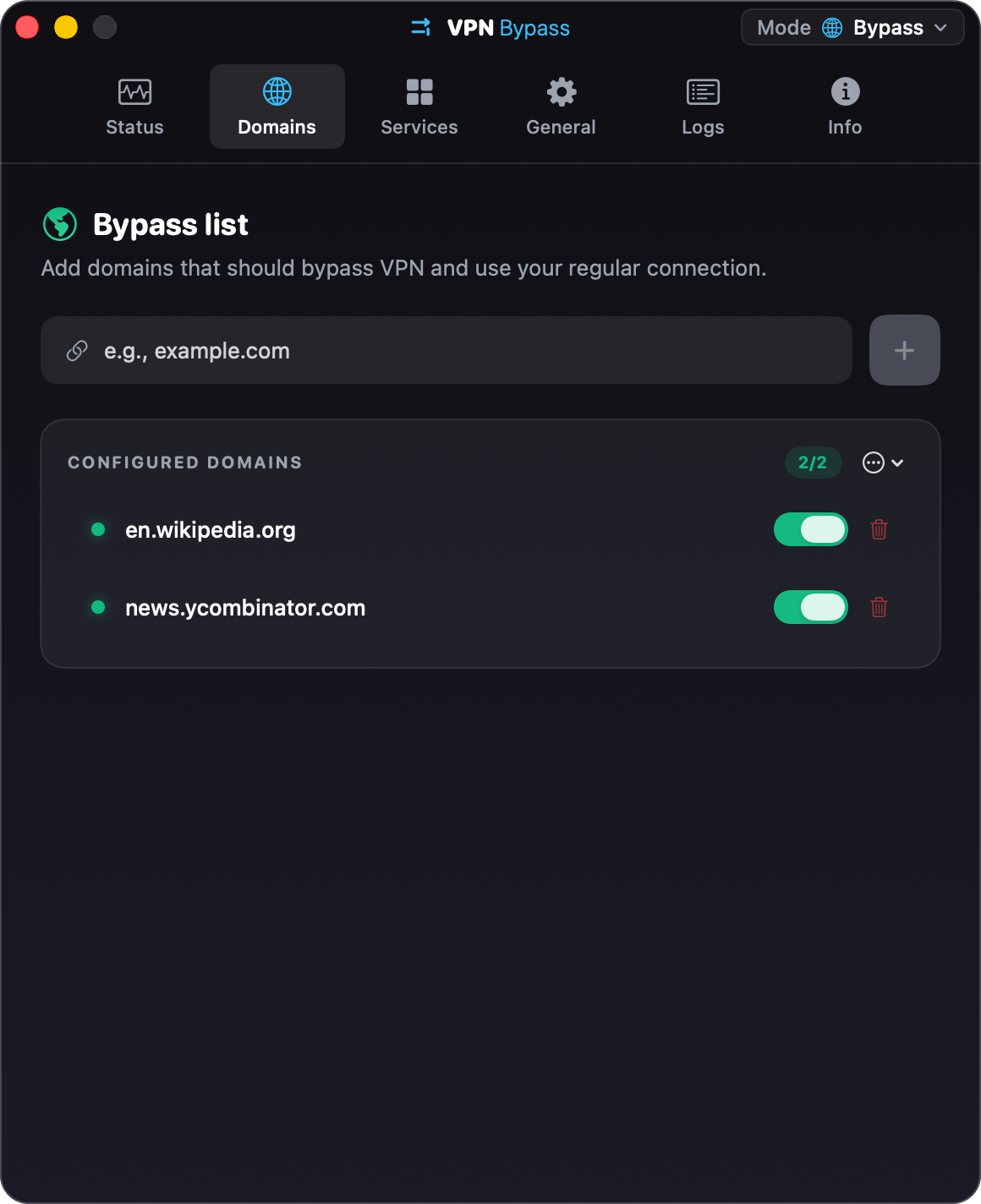
Domains: the Bypass list in Bypass mode and the VPN Only list in VPN Only mode, each titled after its mode. Add domains, enable/disable them individually, see resolved IPs. The ⋯ menu next to the count holds Turn All On and Turn All Off.
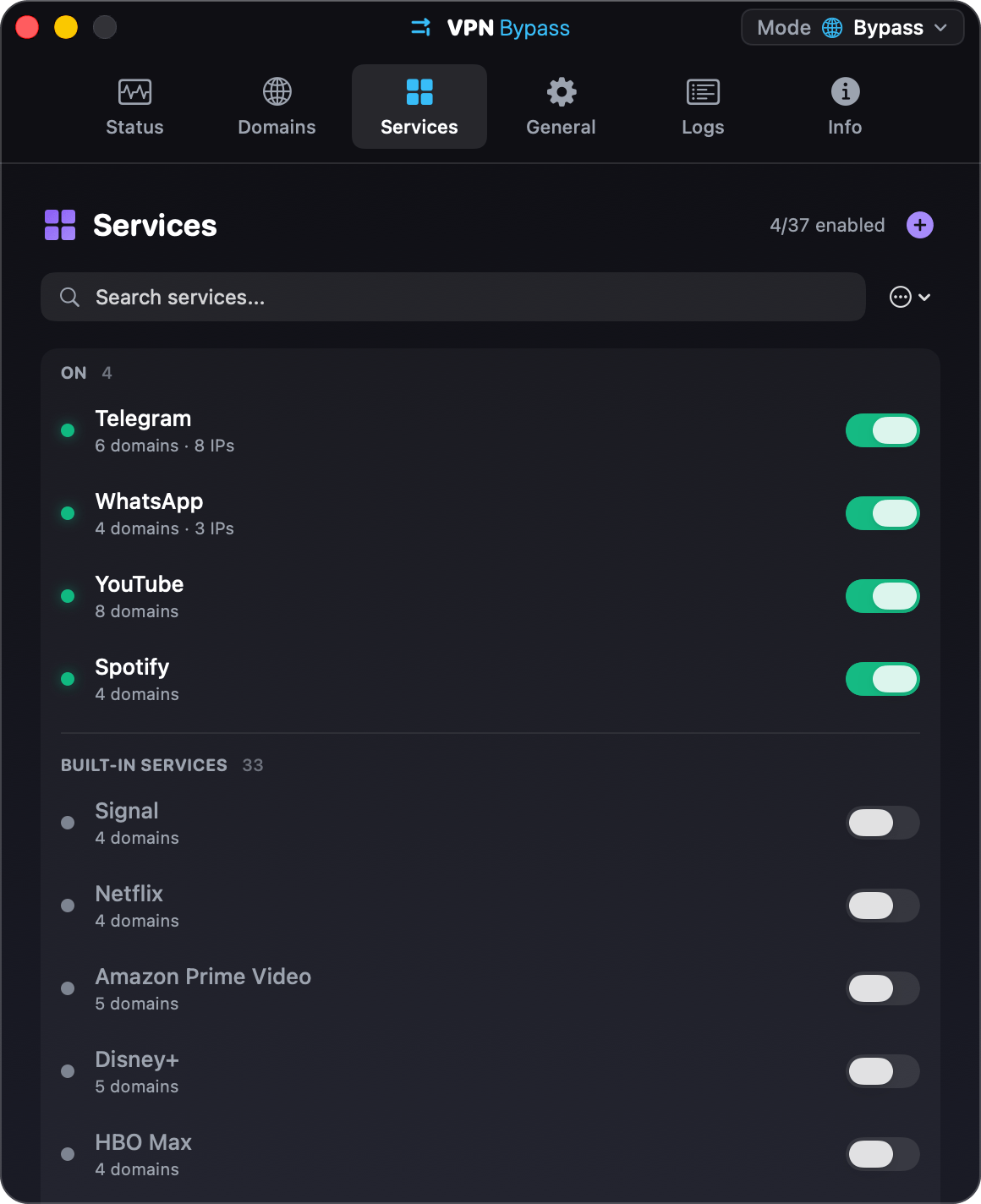
Services: toggle built-in service packs (Telegram, YouTube, Spotify, …); each bundles known domains and IP ranges. The page lists the services that are on first, under On. The rest follow in the usual order, custom services before built-in ones. A service you switch on or off keeps its place until you next open the page, so a row never moves from under the pointer. That holds for a newly created service too, and for a service switched through vpnb while the page is open. The ⋯ menu next to the search field holds Turn All On… and Turn All Off, and both re-sort the list at once. Turn All On asks first when it would turn on more than five services ("Send 33 services around the VPN?"), with Cancel as the default button. Turn All Off does not ask. ⌘F puts the cursor in the search field.
Custom services: the + button on the Services page creates one, with a name, its domains and optional IP ranges. The app tracks routes by name, so a custom service cannot take the name of another service, built-in or custom, or of a domain on the Bypass list. Case and spaces around the name do not count, so Netflix already has "netflix". When a name is taken, the editor outlines it in red, says which service or domain has it, and keeps Save off. Importing a configuration file with such a name imports nothing and names the service to rename in the file. The rule holds the other way too: the Bypass list refuses a domain that a service has as its name, from the Domains tab, from Undo and from vpnb domain.add. A configuration saved before this check still loads unchanged. Editing a service whose name is taken asks for a new name before it saves, and renaming or deleting it puts back the routes of the service or domain that had the same name.
VoiceOver: every switch, in the dropdown and on every Settings page, carries its row's name, such as Telegram or en.wikipedia.org, so a list of services is no longer a column of identical switches. Icon-only buttons say what they do and to which row, such as "Delete en.wikipedia.org" or "Edit Work Tools".
Undo: a trash button removes a domain, a custom service with all its domains, a rule or a route on the first click, and leaves a line in the list such as "Removed news.ycombinator.com." with an Undo button. Turn All On and Turn All Off leave one too ("Turned off 4 services."). Undo, or Edit > Undo (⌘Z), puts the entry back where it was, with its switch as it was, and its addresses are routed again. Undoing Turn All On or Turn All Off switches back only the entries it switched. While routes are still being applied, Undo is greyed out like the switches, and ⌘Z waits up to 10 seconds; if they are still running then, the change stays on the line to undo later. The line covers the last change only: the next delete or Turn All On/Off replaces it, and switching page or mode, or closing Settings, drops it. Each of these also cancels a ⌘Z still waiting for routes, which then changes nothing.
Rules (Custom mode): the ordered rule list (first match wins) mapping domains/suffixes/IPs/CIDRs/services/processes to routes.
Routes (Custom mode): your egresses: auto-detected Direct + VPN links, plus any proxy or Tailscale-peer routes you add.
Status: whether the app is working right now, on one page. A line at the top gives the verdict ("Working", "Not working", "No VPN connected") and the same sentence as the dropdown, for example "4 services and 2 domains skip the VPN. 62 addresses routed 23 s ago, none failed." Under it:
- Helper: the privileged helper's state and version. When it is not ready, its box turns red and the row has an Install, Update or Retry button. This is the page the dropdown's Fix… button opens.
- Connection: the VPN and its interface, the normal connection (Wi-Fi network and gateway), and which interface carries the default route.
- Addresses: what the last apply routed ("62 addresses, 23 s ago, none failed"), what they come from ("4 services, 2 domains"), and the last Verify Routes ("10 of 62 checked, all reachable, 4 min ago"), with a Verify button. While a check runs, whether it started from this button, from the dropdown or after an apply, the row reads "Checking now…" with a spinner beside a greyed-out Verify.
- DNS: the resolver used outside the VPN, when DNS was last refreshed and when it is next due, with Refresh Now.
- Tunnels: every tunnel that is up, each with one sentence ("The app acts on this one. It carries the default route.", "Never touched." for Tailscale), the Act on menu that pins one tunnel, and Addresses owned, how many kernel entries carry the app's tag. The tunnels are read when the page opens, when the VPN changes, and on Refresh.
- Recent warnings: the three newest warnings and errors. Show in Log opens Logs with Warnings selected.
General: settings only. Launch at login, auto-apply on connect, /etc/hosts management, route verification, the DNS refresh schedule, fallback DNS, notification preferences, the SOCKS5 proxy, and import/export.
Logs: the last 200 log entries, newest first. The segmented control above the list shows All, Warnings (warnings and errors) or Errors, and the search field keeps the entries whose text contains what you type, ignoring case and accents, with the match marked. A line above the list says how many entries match, for example "3 of 200 entries". Copy copies only the entries shown. Clear removes every entry, including the ones the filter hides. A line written while the app served a request on the control socket, from vpnb or an MCP server, ends in "via the command line", and so do the lines of the work that request started. The dropdown's "Last change" line opens the page with a "From the command line" token that shows only those lines; click the token to show every line again.
Info: version and helper status.
Command-line control (vpnb)
A bundled vpnb CLI drives the same routing the GUI does, over a user-only UNIX socket, for scripting or a headless Mac. It needs no extra privilege (the app already holds it).
vpnb ships inside the app bundle (VPN Bypass.app/Contents/MacOS/vpnb). Installing via the Homebrew tap (brew tap geiserx/vpn-bypass && brew install --cask vpn-bypass) symlinks it onto your PATH. With a manual DMG install, call it by its full path ("/Applications/VPN Bypass.app/Contents/MacOS/vpnb") or symlink it onto your PATH yourself.
vpnb status                                   # current mode, routes, schema/version
vpnb mode mode=custom                         # switch modes: bypass | vpnOnly | custom
vpnb route.add name=work type=socks5 host=127.0.0.1 port=1080
vpnb rule.add match=suffix pattern=example.com routeId=<uuid>
vpnb route.list ; vpnb rule.list
Secrets are never passed on the command line (argv is world-visible via ps). Pass the bare token pass:- and pipe the password on stdin:
Set VPNB_SOCKET to override the socket path (default: ~/Library/Application Support/VPNBypass/control.sock).
Domains, services and logs (4.9.0 and later)
From VPN Bypass 4.9.0, vpnb also reaches the Bypass and VPN Only modes: the two domain lists, the services, the routes the app has installed, the refresh buttons and the log.
vpnb domain.list
vpnb domain.add domain=example.com
vpnb domain.add domain=10.0.0.0/8 list=vpnOnly
vpnb domain.disable domain=example.com
vpnb domain.enable domain=example.com
vpnb domain.rm domain=example.com
vpnb service.list
vpnb service.list id=netflix
vpnb service.enable id=netflix
vpnb routes.active
vpnb routes.clear
vpnb refresh
vpnb dns.refresh
vpnb logs limit=20 level=error
domain.listshows both lists, the Bypass list first;list=bypassorlist=vpnOnlyshows one. The VPN Only list also takes a CIDR.domain.addadds to the Bypass list unless you passlist=vpnOnly. It cleans and checks the value the way the Domains tab does. The Bypass list refuses an IP range such as10.0.0.0/24and takes a pasted link as its host name, and the VPN Only list refuses a malformed CIDR and a/0or/1. Adding a domain that is already on the list, or one that a service has as its name, returnsalready_exists.domain.rm,domain.enableanddomain.disabletakedomain=orid=<uuid>, and look in both lists unless you passlist=. When the same domain is on both lists, passlist=bypassorlist=vpnOnly.service.list id=netflixshows one service with its domains and IP ranges.service.disableturns a service off.- Enabling something that is already on, or disabling something already off, succeeds and changes nothing.
- A domain or service change is saved before
vpnbreturns. The routes for that entry are added or removed a moment later, and only while a VPN is connected and the app is in the mode that uses that list: Bypass mode for the Bypass list and the services, VPN Only mode for the VPN Only list. Runvpnb routes.activeorvpnb logsto see them. routes.activelists the routes the app has installed;source=<domain or service name>keeps one source.routes.clearis Remove All Routes… in the dropdown's "…" menu, without the question, and the routes it removes come back at the next refresh, VPN reconnect or DNS refresh.refreshis the Refresh Routes button anddns.refreshis Settings > Status > Refresh Now. Both start the work and return at once.refreshfails withhelper_not_readywhen the privileged helper is not ready.vpnb statusprints the running app's version asapp: <version>(theappVersionfield on the socket).logsprints the newest entries first. It takeslimitfrom 1 to 200 (default 50) andlevelasinfo,success,warningorerror.- An app older than 4.9.0 answers these commands with
unknown_command.
The MCP server uses the same socket, so an AI agent can do all of this too.