Getting started
This walks through installing QualityGate and capping one user at 720p. It takes about ten minutes, and the last step tells you how to prove the cap actually holds.
Requirements
- Jellyfin 12 (
targetAbiis12.0.0.0,net10.0). QualityGate 3.4.0.0 and later will not load on 10.x. If you are still on 10.11, the last build for it is 3.3.6.0, and it is no longer maintained. - Admin access to the Jellyfin web UI.
- Your media must have been scanned, so Jellyfin knows each file's real resolution. The cap reads the height from the video stream, so an item Jellyfin has never probed cannot be measured.
Install from the plugin repository
- In Jellyfin, go to Dashboard, Plugins, Repositories and add:
- Go to Catalogue, find QualityGate, and install the newest version.
- Restart Jellyfin. A plugin does not load until the server restarts.
- Go back to Plugins and check that QualityGate shows Active. Anything else means it did not load, and nothing is being enforced. See troubleshooting.
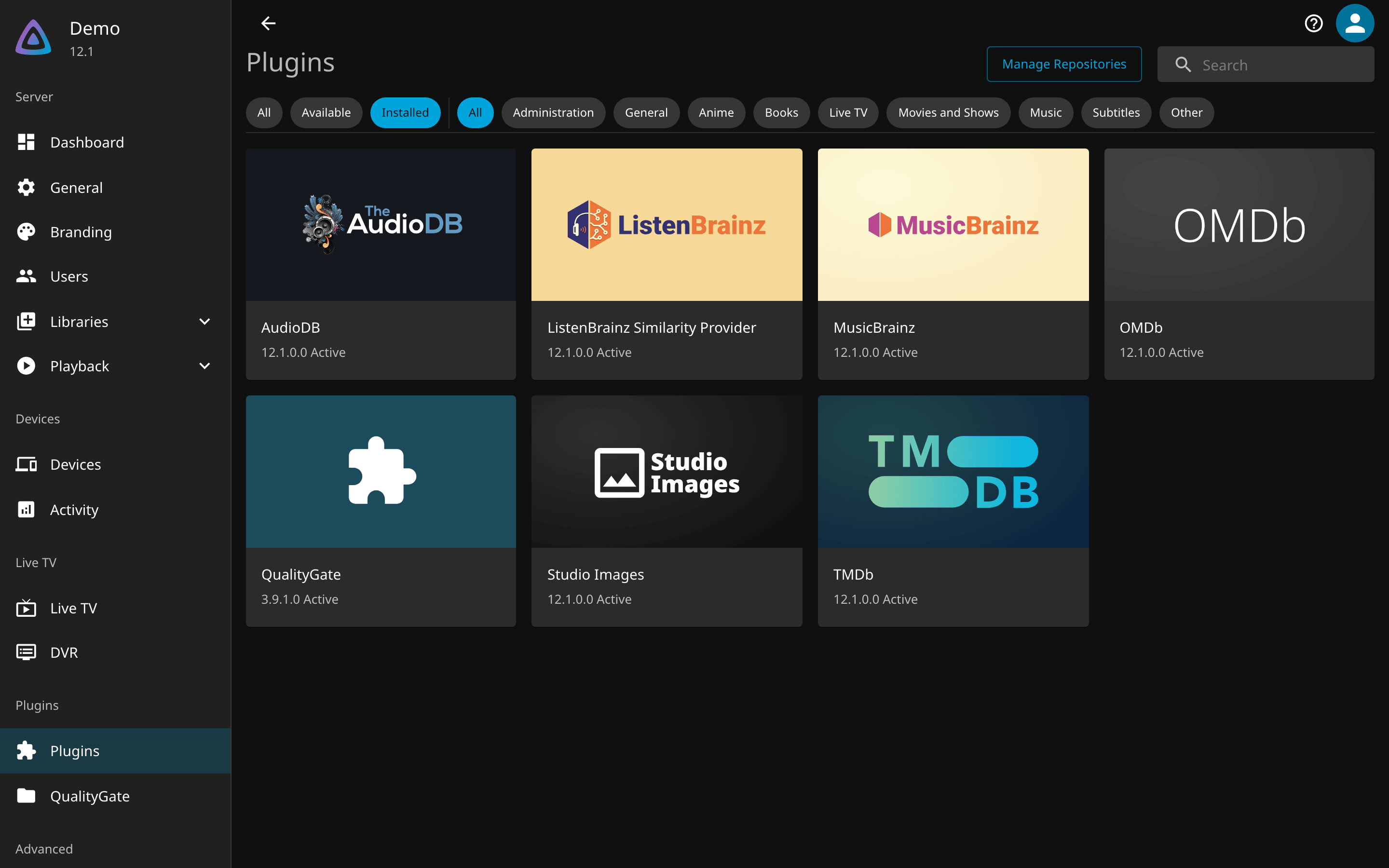
The plugin GUID is 9cab70ca-0af3-4d3a-adab-6a0df2496a33. You need it for the configuration
API, and for the reinstall command in troubleshooting.
To install without the repository, see Manual installation below. Building from source is in Development.
Create a policy
Open Dashboard, Plugins, QualityGate.
- Under Policies, add a policy.
- Name it something you will recognise later, for example
720p Only. - Set Maximum Resolution to 720p.
- Leave everything else alone. Several of the other fields do not restrict playback in the current build, and configuration explains exactly which.
- Save.
Maximum Resolution is the only field that restricts playback. If you set it to No limit,
the policy caps nothing, no matter what else you fill in.
Assign a user
In the User Access table, set the user to your new policy and save.
Three things decide which policy a user gets, in this order:
- An explicit assignment for that user wins.
- Otherwise the default policy applies, if you set one.
- Otherwise the user is unrestricted.
Full access is an explicit choice you can assign, and it beats the default policy. That is
the way to exempt one person while everyone else inherits a default.
Prove it works
Do not skip this. A cap you have not tested is a guess, and the failure mode is silent: an unloaded plugin looks exactly like a loaded one that is allowing everything.
Sign in as the capped user and play something you know is 1080p or larger. You should see it play, because QualityGate does not hide media. What changes is how it is delivered. Check Dashboard, Activity while it plays and look at the height being served, not at the delivery mode.
Two outcomes are both correct, and which one you get depends on the media:
- A capped transcode of the original, when that item has no smaller version.
- Direct play of a smaller version of the same item, when one exists. QualityGate offers the within-cap sibling instead of transcoding, which is cheaper and looks the same to the viewer.
So "Direct playing" is not a failure on its own. Being served a height above your cap is.
For a harder check, ask the server for the original bytes directly. As the capped user, with their access token:
curl -s -o /dev/null -w '%{http_code}\n' \
  -H 'Authorization: MediaBrowser Token="<capped-user-token>"' \
  'https://your-server/Items/<item-id>/Download'
A capped user must get 403 for an item above the cap. If you get 200, the cap is not
working. Run the same request as an unrestricted user and confirm you get 200 there, so you
know the test itself is meaningful.
Manual installation
Take the version number from the
latest release rather than copying
one from a document. Extract the zip so that Jellyfin.Plugin.QualityGate.dll sits directly
inside a folder under plugins/.
Jellyfin expects this layout:
config/plugins/
  QualityGate_3.9.1.0/
    Jellyfin.Plugin.QualityGate.dll
    build.yaml
    meta.json          <- written by Jellyfin's installer, not present in the zip
The folder name is conventionally Name_Version. The release zip contains only the DLL and
build.yaml; meta.json is written by Jellyfin itself when it installs from the repository, and
it is what Jellyfin reads to know which version is installed and whether an update exists.
Do not hand-write meta.json, and never copy one from an older version folder. It carries
"status": "Deleted", and the plugin will remove itself on the next restart. If you need version
tracking, install from the repository instead of by hand.
Docker
VERSION="3.9.1.0"
curl -L -o QualityGate.zip \
  "https://github.com/GeiserX/quality-gate/releases/download/v${VERSION}/quality-gate_${VERSION}.zip"
unzip QualityGate.zip -d /path/to/jellyfin/config/plugins/QualityGate_${VERSION}/
docker restart jellyfin
Linux
VERSION="3.9.1.0"
curl -L -o QualityGate.zip \
  "https://github.com/GeiserX/quality-gate/releases/download/v${VERSION}/quality-gate_${VERSION}.zip"
sudo unzip QualityGate.zip -d /var/lib/jellyfin/plugins/QualityGate_${VERSION}/
sudo chown -R jellyfin:jellyfin /var/lib/jellyfin/plugins/QualityGate_${VERSION}/
sudo systemctl restart jellyfin
Windows
There are two data directories, and which one applies depends on how Jellyfin was installed:
- Installed as a Windows service (the default installer):
%PROGRAMDATA%\Jellyfin\Server\plugins\QualityGate_<version>\ - Portable or tray builds run under your own account:
%LOCALAPPDATA%\jellyfin\plugins\QualityGate_<version>\
Putting the DLL in the wrong one leaves it outside the folder Jellyfin scans, and it will simply never appear. Confirm which applies from Dashboard, About, then restart Jellyfin from Services or the tray icon.
macOS
Use whichever data directory your install actually reports, rather than assuming. Check
Dashboard, About, or JELLYFIN_DATA_DIR if you set it. For a default install that is
~/.local/share/jellyfin.
VERSION="3.9.1.0"
DATA_DIR="$HOME/.local/share/jellyfin"   # confirm this against Dashboard, About
curl -L -o QualityGate.zip \
  "https://github.com/GeiserX/quality-gate/releases/download/v${VERSION}/quality-gate_${VERSION}.zip"
unzip QualityGate.zip -d "$DATA_DIR/plugins/QualityGate_${VERSION}/"
Upgrading
Update through the catalogue and restart. Jellyfin marks the old version folder deleted and removes it on the next start.
On overlay filesystems, notably Unraid's shfs, that removal can fail in a way that takes the new version with it. If a plugin disappears after an upgrade, that is what happened, and troubleshooting has the recovery.
Upgrading never touches your policies. They live in
config/plugins/configurations/Jellyfin.Plugin.QualityGate.xml, outside the plugin folder.
What to read next
- Configuration for every setting, and for the ones that do not restrict playback.
- How it works for the routes that are covered, and the one that is not.
- One library, two qualities if you keep a smaller encode beside each original and want both to appear as a single item.
- Troubleshooting when something is not behaving.