Usage
The settings page, section by section. Open it under Dashboard, Plugins, QualityGate. The screenshots come from a demo server with two of the Blender open films and six invented users; nothing on them is a real person or a real server.
Policies
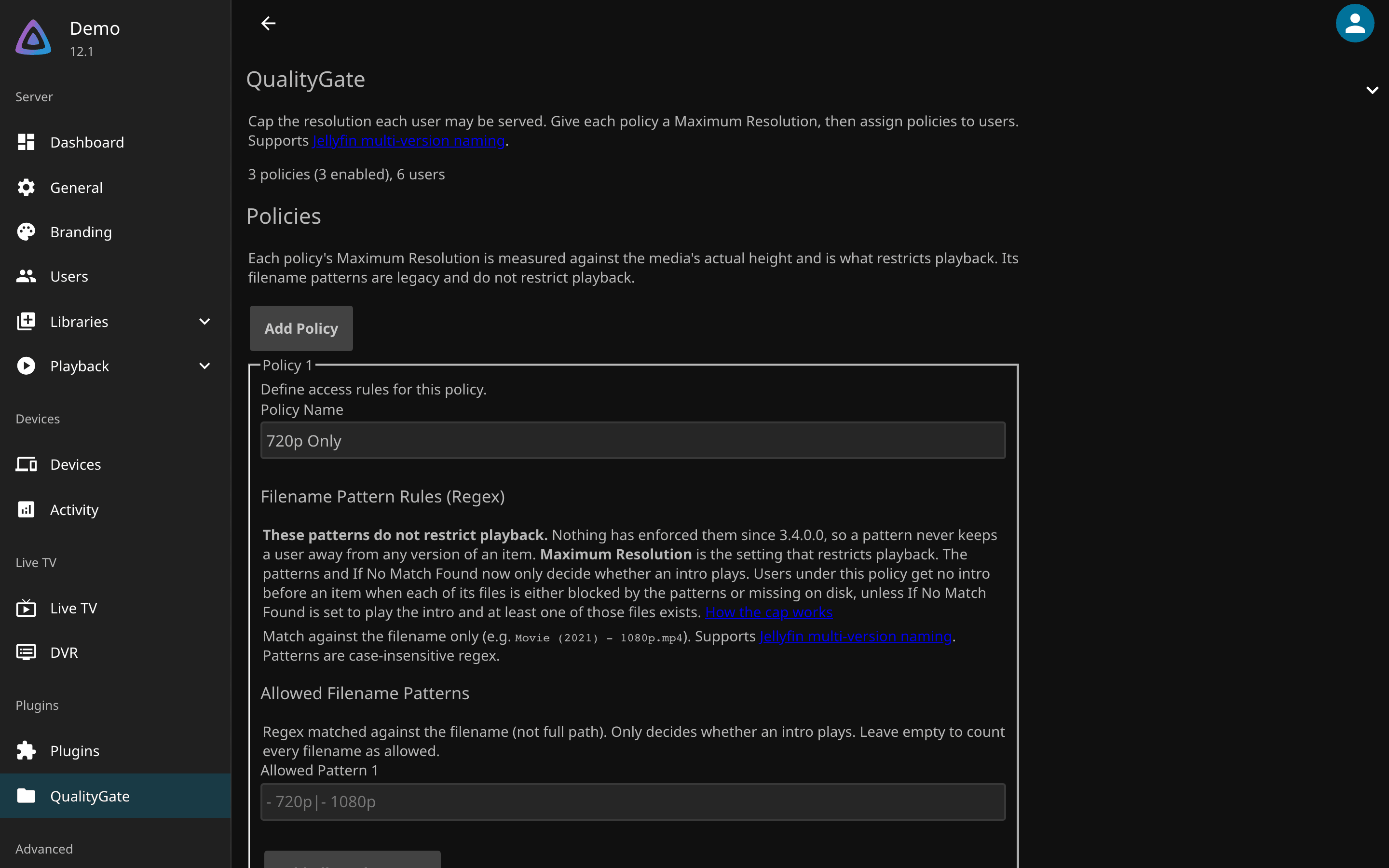
A policy is a name and a Maximum Resolution. That field is the only one that restricts playback: the filename patterns, If No Match Found and Max Bitrate on the same card have enforced nothing since 3.4.0.0, and Configuration lists them. Set Default Policy to the policy everyone gets unless assigned otherwise, and API key and anonymous requests to cap integrations and unauthenticated requests, which carry no user.
User Access
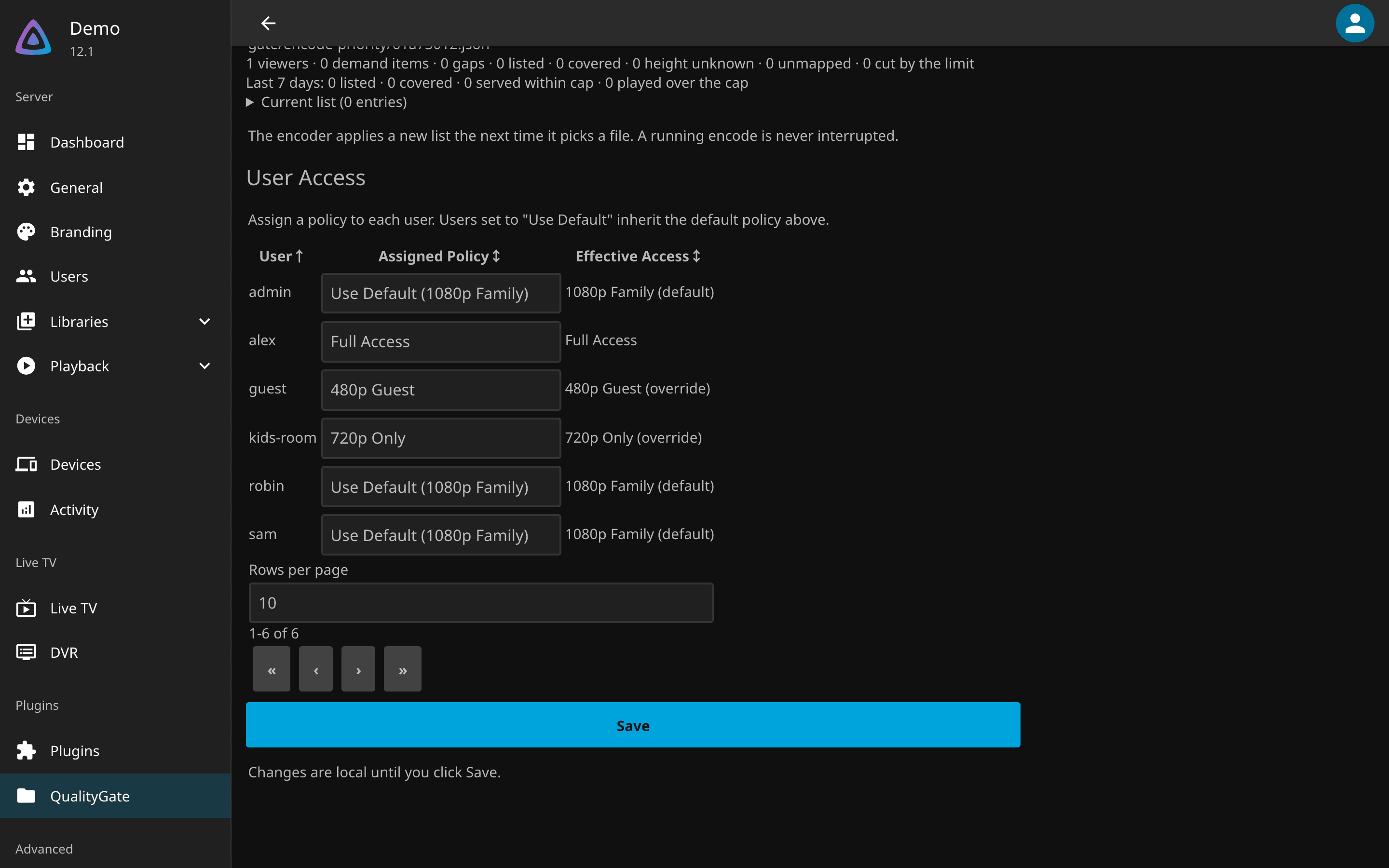
One row per Jellyfin user. Assigned Policy is your explicit choice; Effective Access is what the
user actually gets after the default is applied. Full access is an explicit choice that beats the default,
which is how you exempt one person while everyone else inherits it. A row that reads Denied (invalid
policy) points at a policy that was deleted or disabled; Configuration
says how to give that user playback back.
Version Grouping
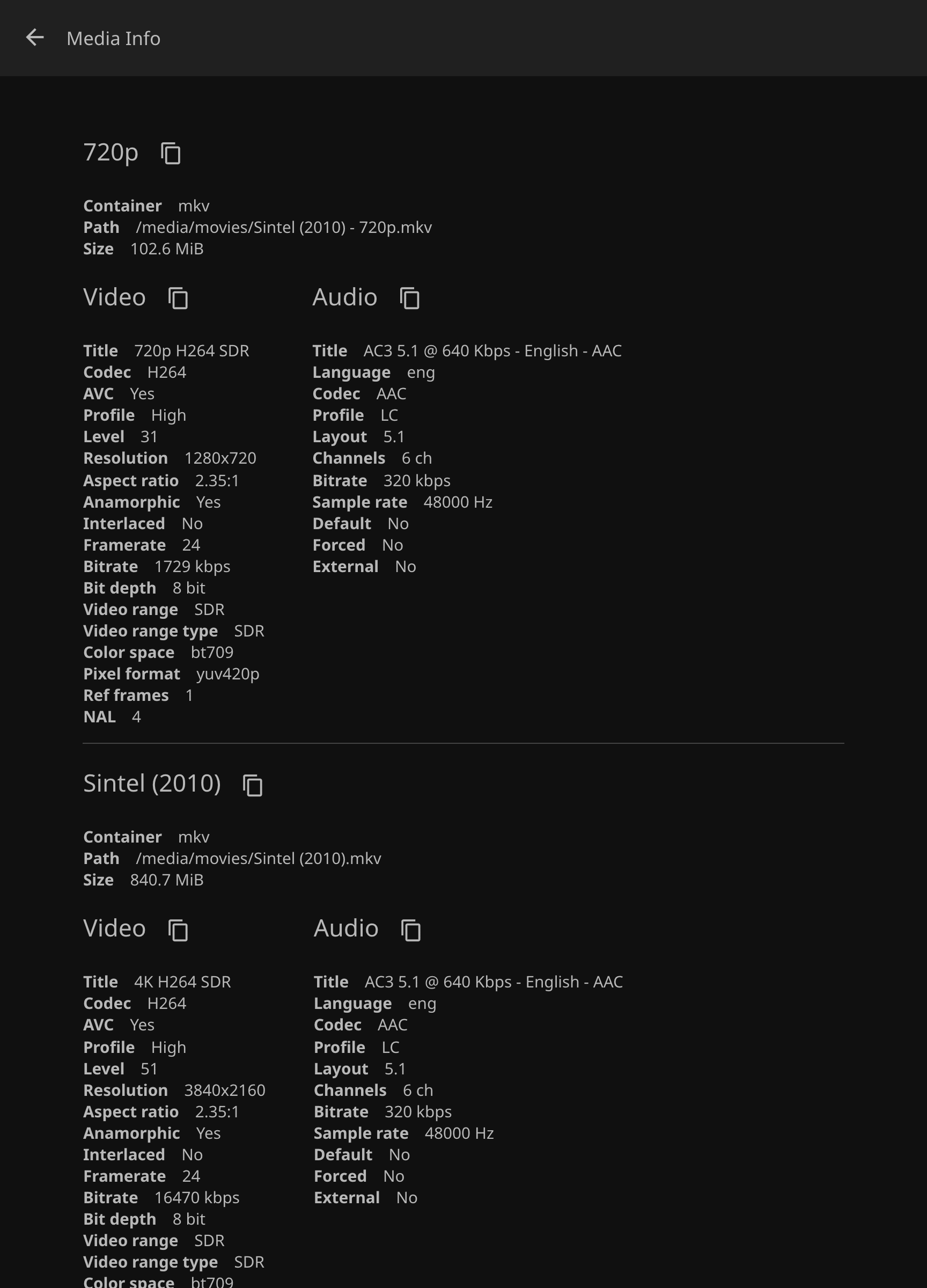
Tick Group an encoded copy with its original and a movies library shows Film.mkv and
Film - 720p.mkv as one film with two versions when both files sit in the same folder, whatever
that folder is called. The Media Info dialog of a film lists both. A capped viewer is offered the
version within their cap; an unrestricted viewer gets the original first.
One library, two qualities has the naming rule and what to check before
switching it on.
Encode Priority
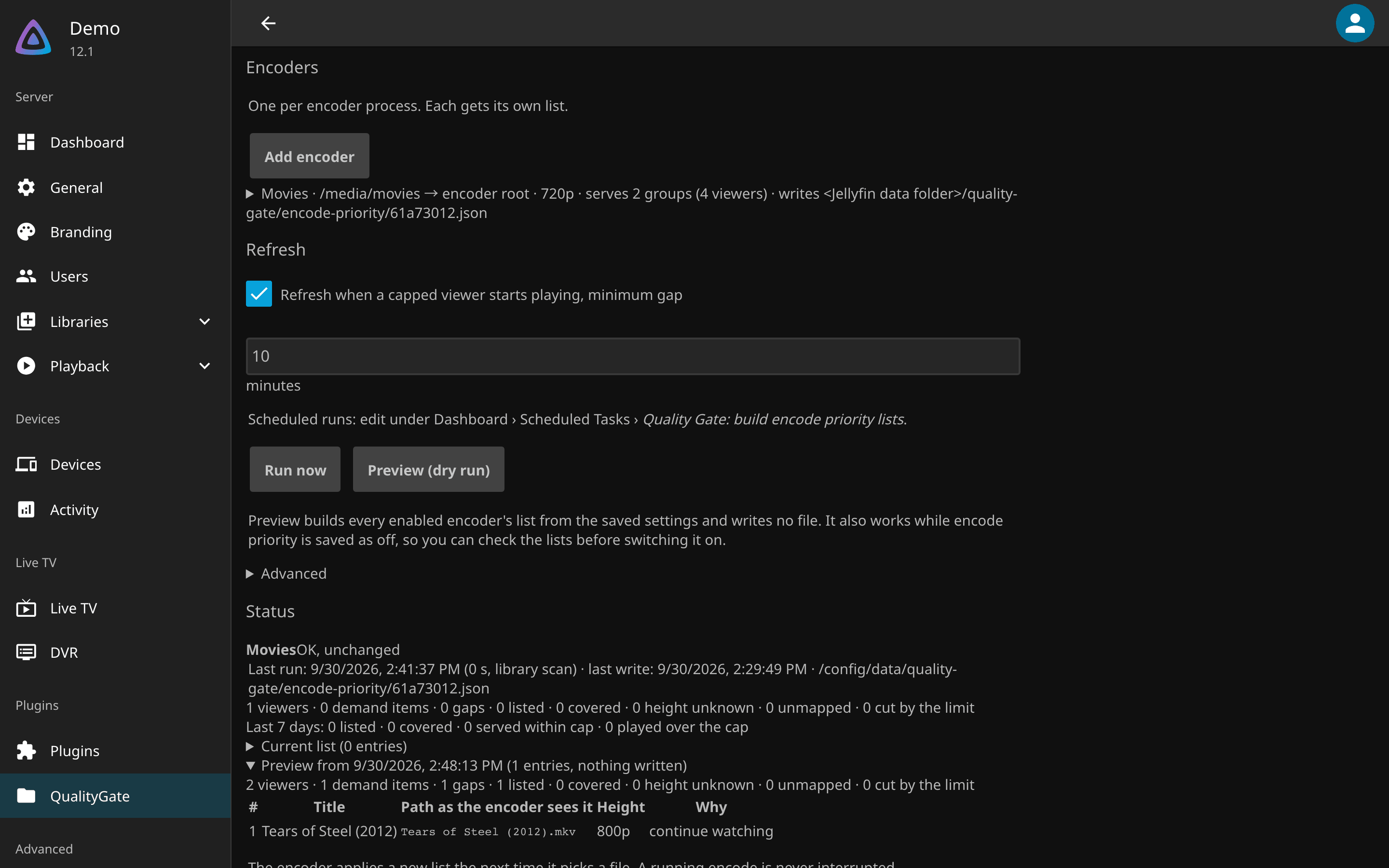
Tick Prioritise encodes for capped viewers, add an encoder, give it the folder as Jellyfin sees it and the height it produces, and choose where the list is written. The Serves line says which policies' viewers this encoder can help. Preview (dry run) builds the list without writing it, and Status shows what a run would write: the items capped viewers are about to watch that still have no version within their cap. Encode priority has the encoder side and the findings.
Watching the cap hold
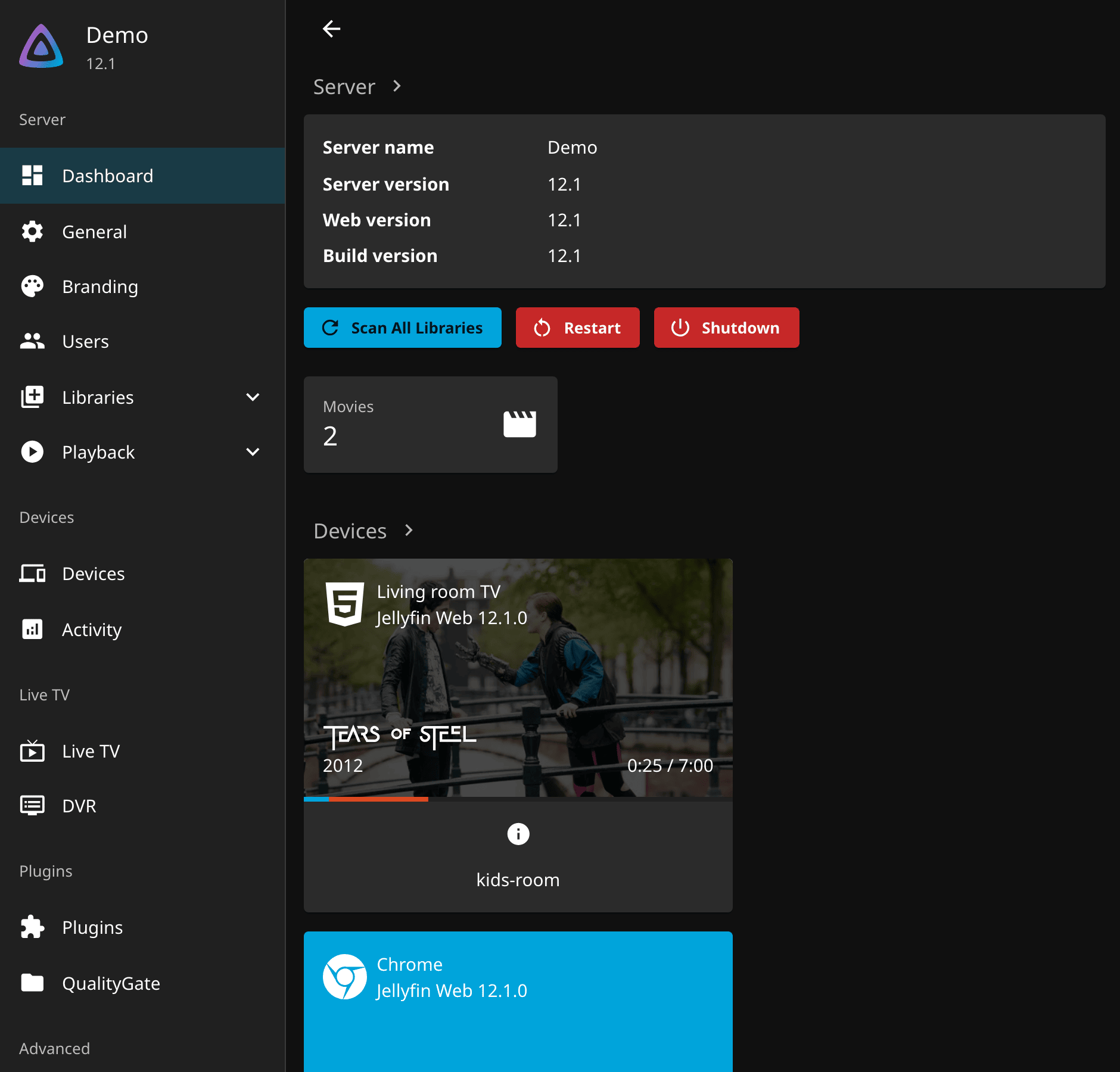
Dashboard shows every active playback, one card per device. For a capped viewer playing a film above
their cap, the info button on the card says Transcoding; a viewer whose film has a copy within the cap
plays that copy directly. Both are correct. The card does not print the size; GET /Sessions does, as
TranscodingInfo.Height, and it must not exceed the cap. Being served a height above the cap is wrong, and
Troubleshooting starts from there.