Themes and wallpaper
This page shows how to pick a colour theme in the viewer, set a default theme for every browser, and put a wallpaper behind the messages.
Pick a theme
Click the palette button in the sidebar header. A list of the seven themes opens. Click one and the viewer switches to it at once.
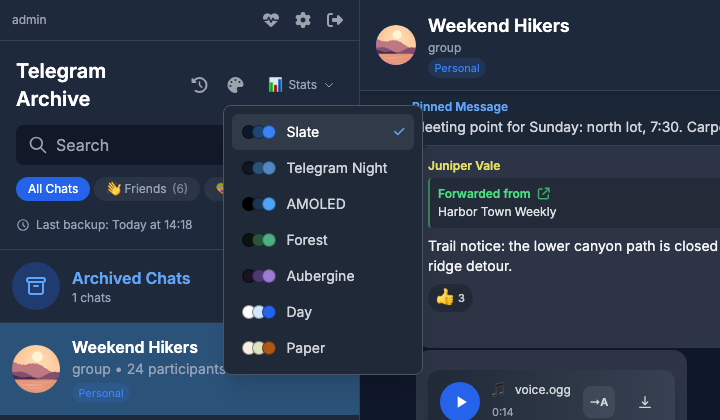
The seven themes
| Id | Label | Kind |
|---|---|---|
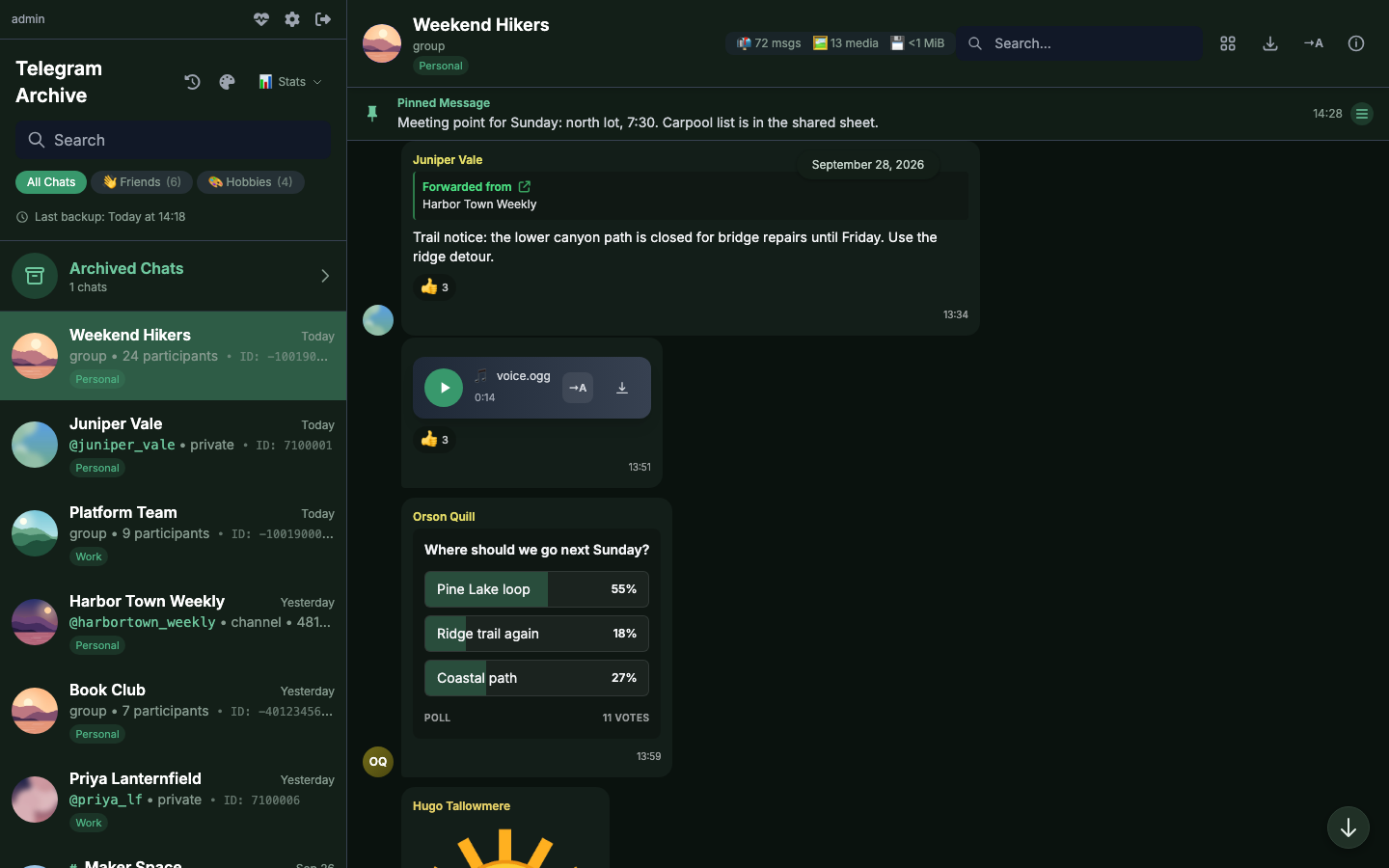
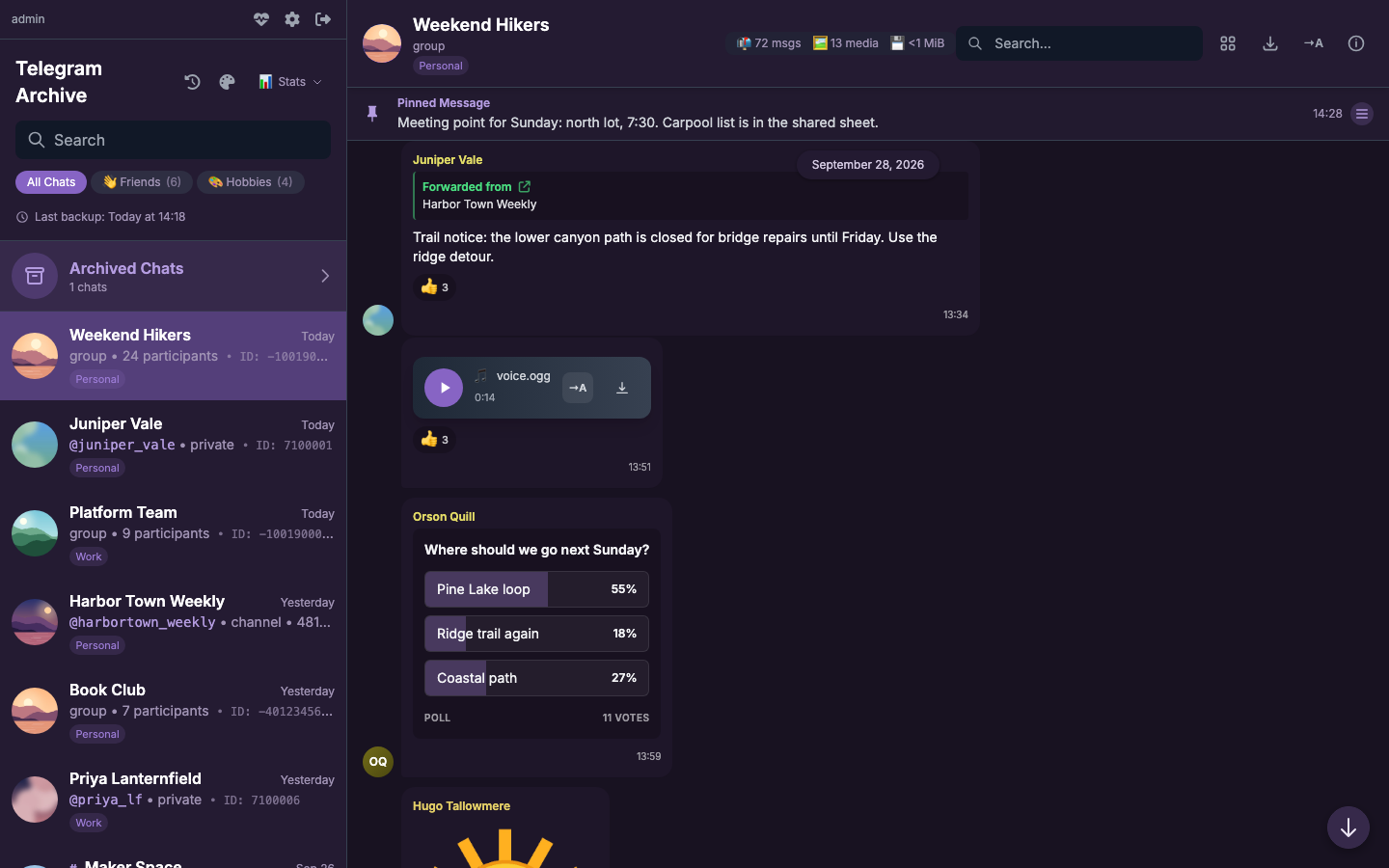
slate |
Slate | Dark, the default |
night |
Telegram Night | Dark |
amoled |
AMOLED | Dark |
forest |
Forest | Dark |
aubergine |
Aubergine | Dark |
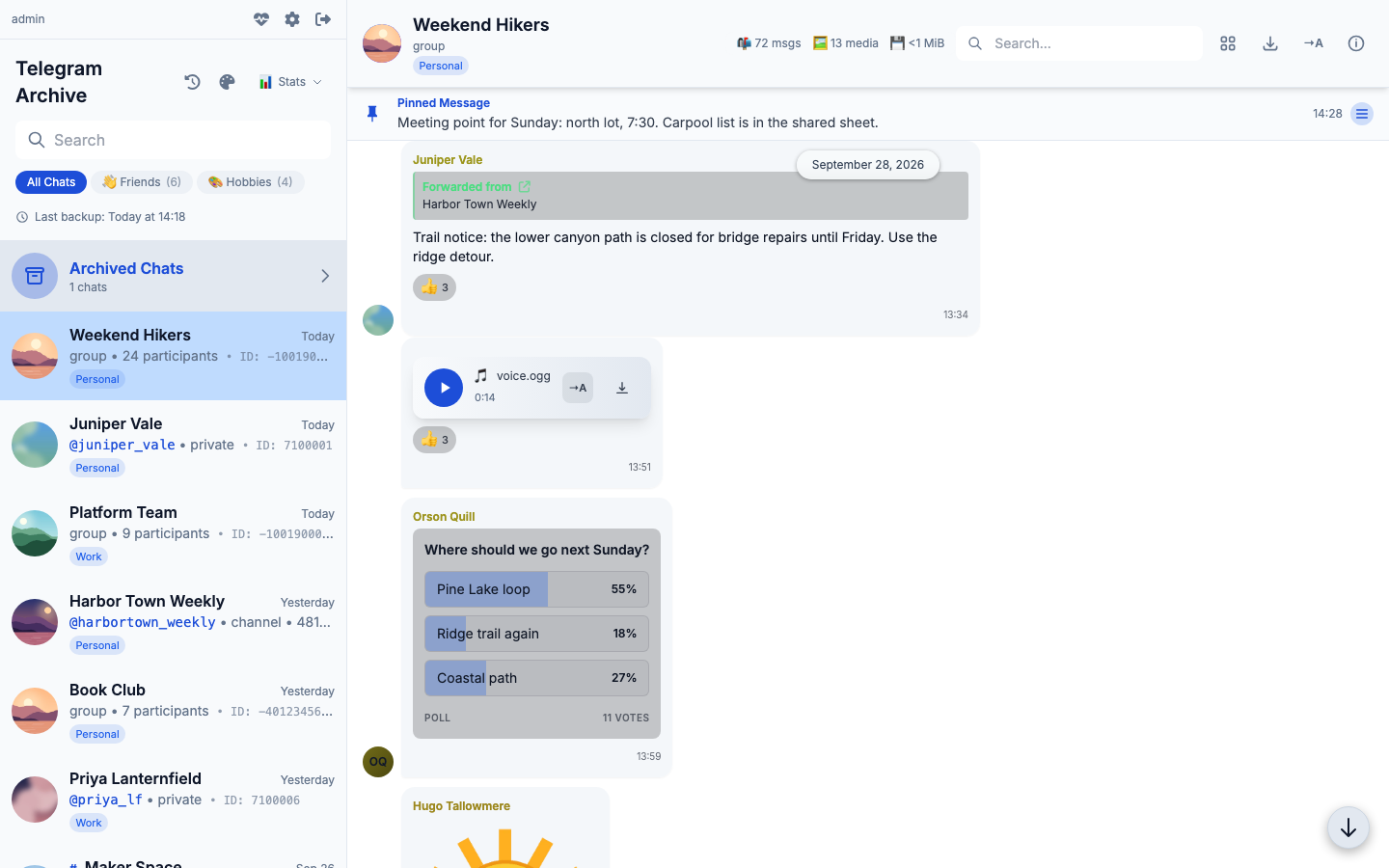
day |
Day | Light |
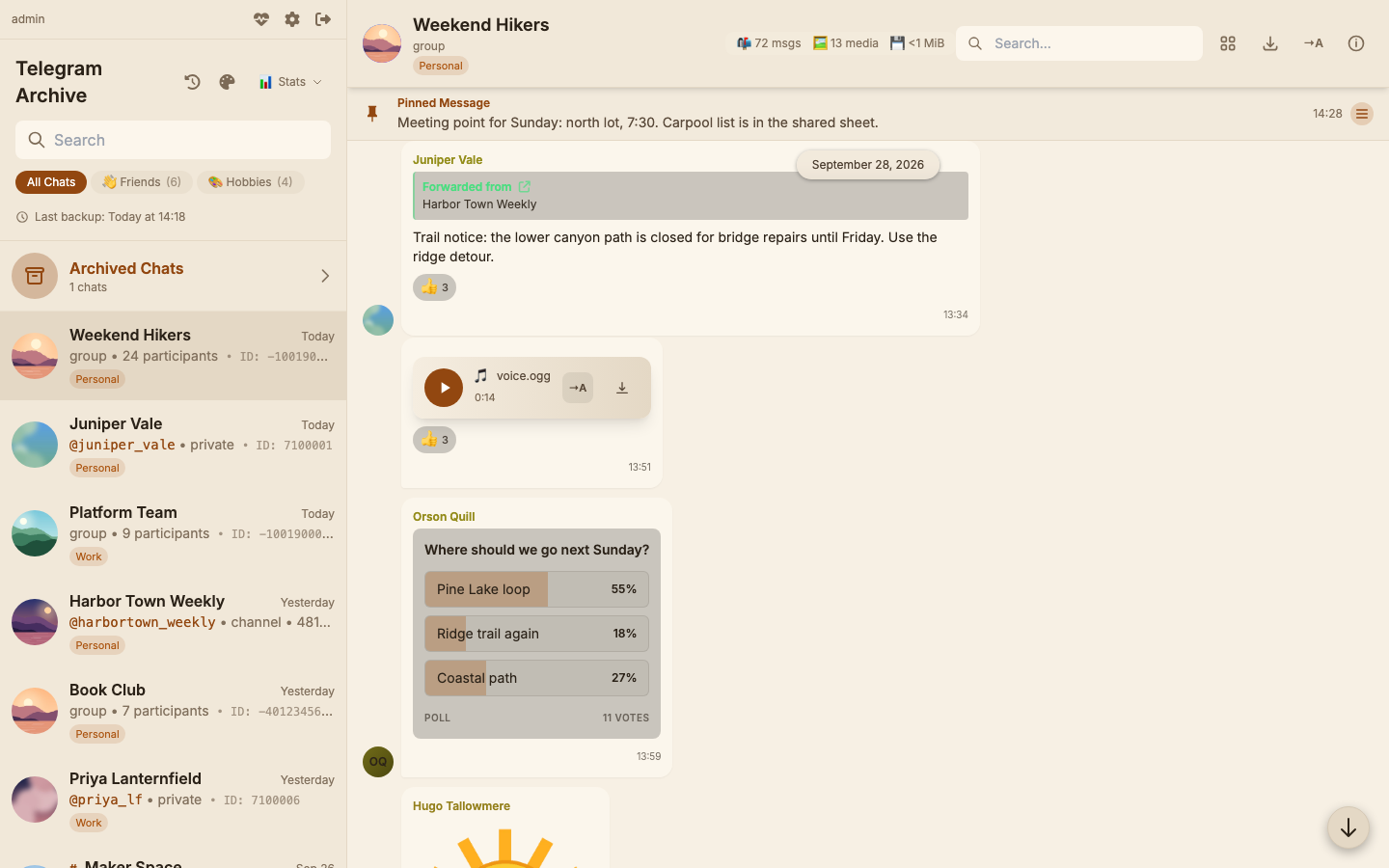
paper |
Paper | Light |
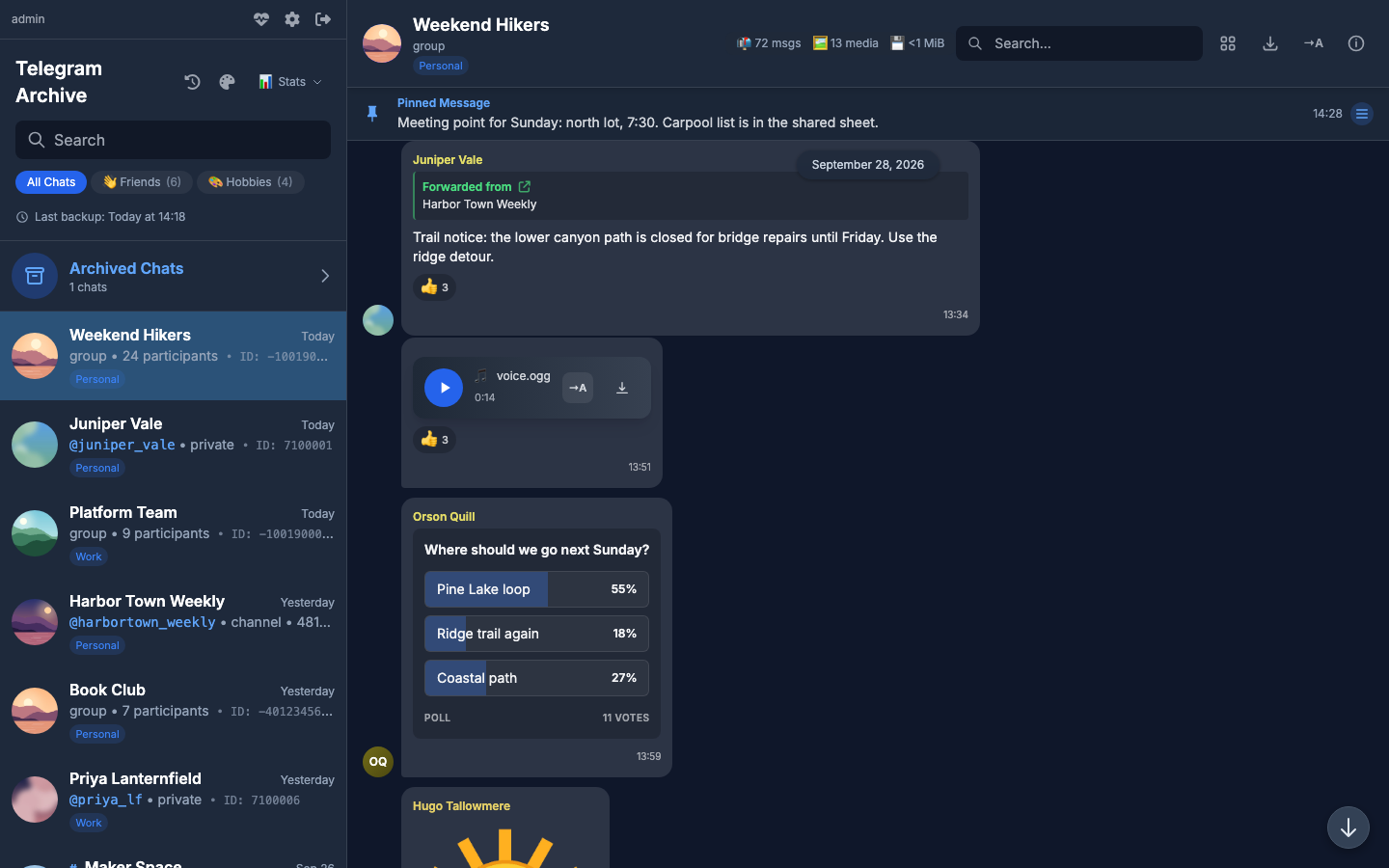
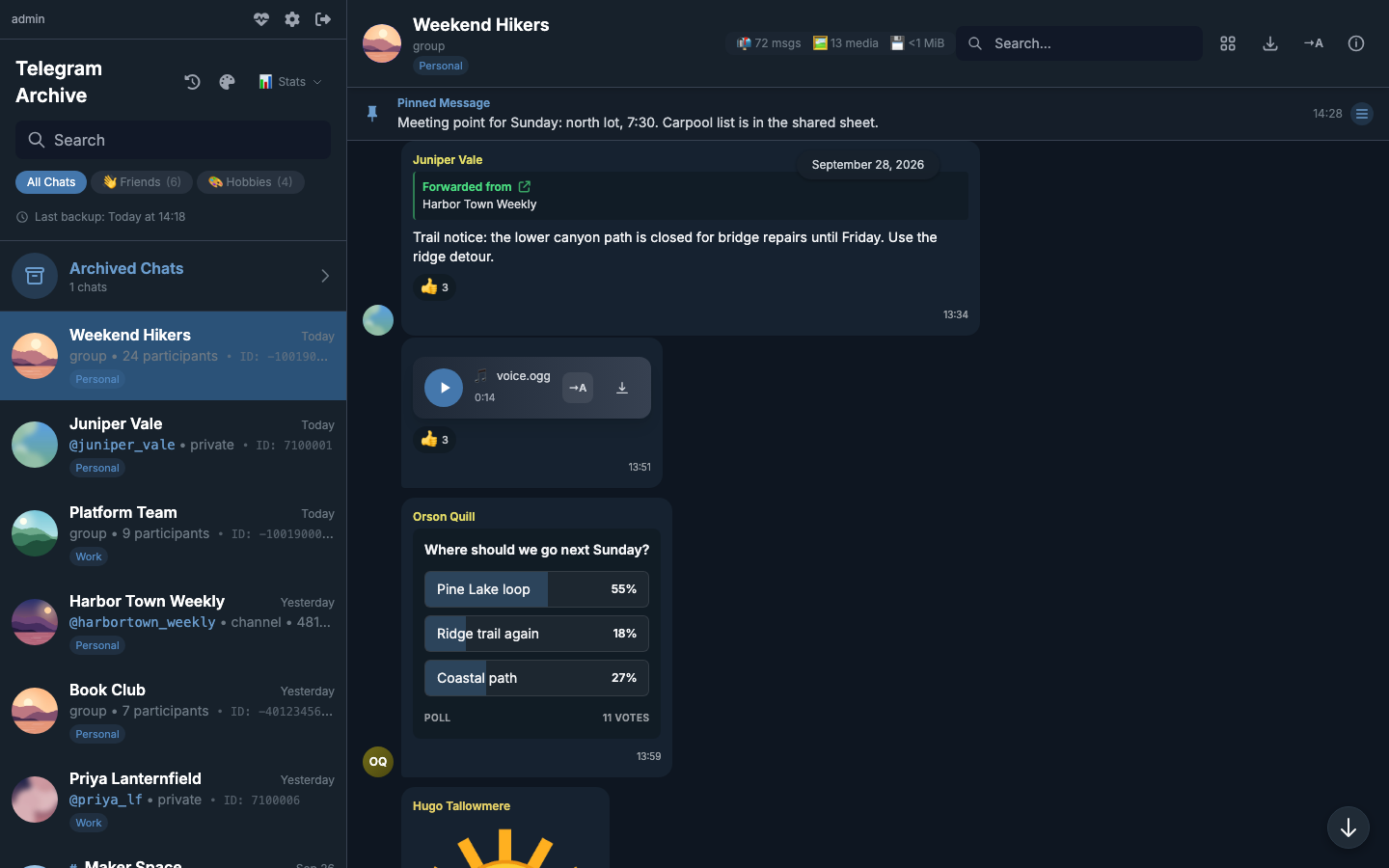
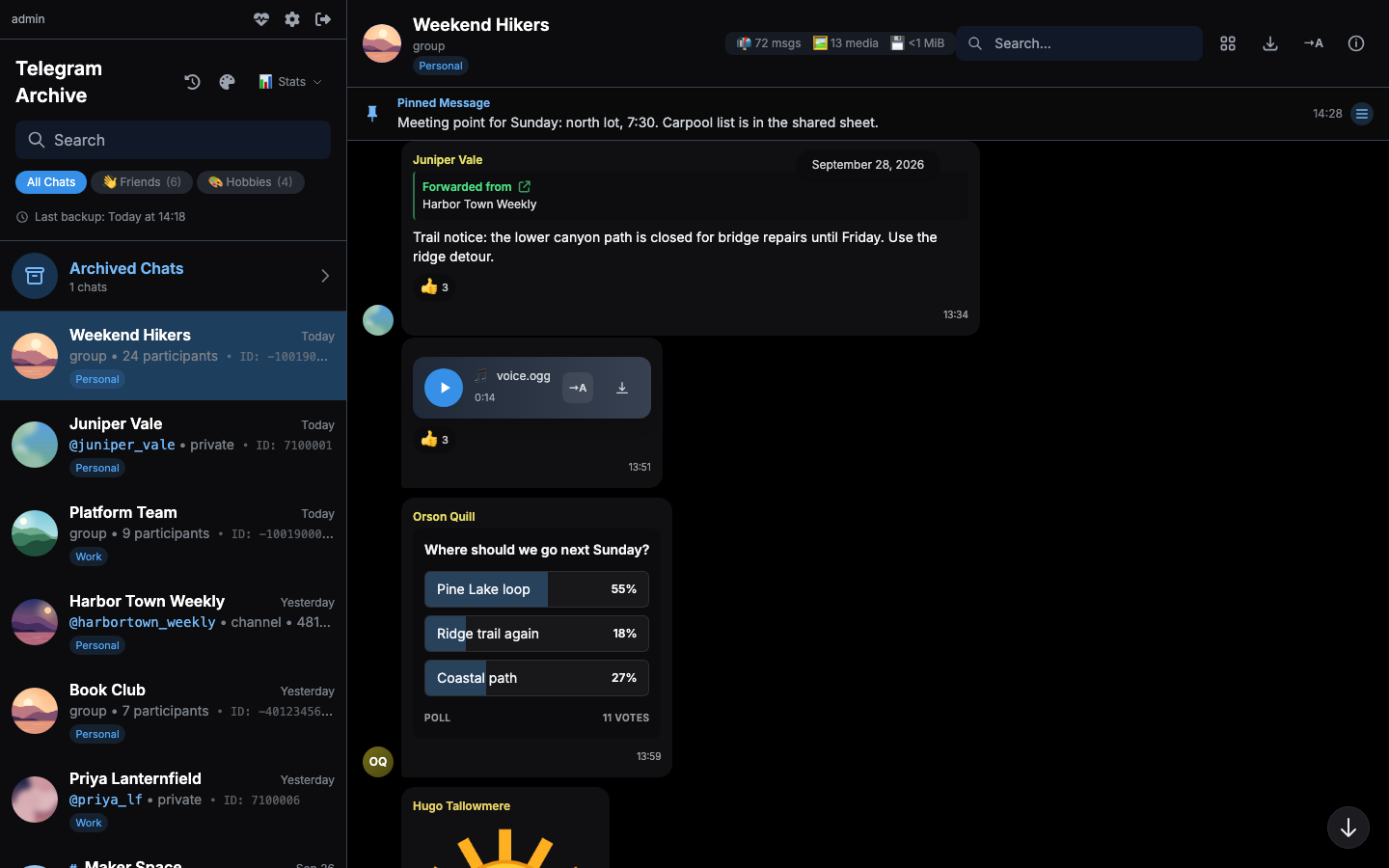
Each screenshot below shows the same group chat in one theme.
Which theme a browser gets
When the page loads, the viewer takes the first of these that holds a known theme id:
?theme=<id>in the URL. The viewer saves it as the browser's choice, then removes it from the address bar.- The theme this browser saved from the picker or from an earlier
?theme=link. VIEWER_DEFAULT_THEMEon the server.- Slate.
The choice is stored in the browser. It does not follow a user to another browser or another device.
To open the viewer in Day for someone else, send them a link with ?theme=day, for example https://archive.example.com/?theme=day. Their browser keeps Day until they pick something else.
Set a default for all browsers
VIEWER_DEFAULT_THEME sets the theme for every browser that has no saved choice. The value is lowercased and must be one of the seven ids in the table. Any other value is ignored and the viewer falls back to Slate.
The viewer applies the default before the page first paints, so nobody sees a flash of Slate first.
The variable is already in the viewer's environment block of the stock docker-compose.yml. Set it in your .env:
Then recreate the viewer:
Add a chat wallpaper
VIEWER_CHAT_BACKGROUND names an image file that the viewer shows behind the messages.
The value is a bare file name inside the viewer's static directory:
- Allowed characters: letters, digits, dots, underscores and hyphens.
- The first character is a letter or a digit.
- The name is at most 128 characters long.
The viewer ignores any other value and logs a warning. If the file is not in the static directory, the viewer logs a warning and the message pane keeps its plain background.
When a wallpaper is set, message bubbles and chips turn opaque so text stays readable over the picture. The viewer tints the image with the current theme's background colour, so one picture works under light and dark themes.
The wallpaper is public
The viewer serves the image without a login, like its other static files. Anyone who can reach the viewer can load it. Do not use a private picture.
Mount the single image file read-only into the static directory, and add the variable to the viewer's environment block. The viewer runs with a read-only root filesystem, so a bind mount is the only way to add the file. Keep the mount in your compose file so it survives image updates.
In docker-compose.yml, on the telegram-viewer service:
services:
  telegram-viewer:
    environment:
      VIEWER_CHAT_BACKGROUND: wallpaper.jpg
    volumes:
      - ./data:/data
      - ./wallpaper.jpg:/app/telegram_archive/web/static/wallpaper.jpg:ro
The file name in the mount and in VIEWER_CHAT_BACKGROUND must match. The stock compose file already passes VIEWER_CHAT_BACKGROUND from .env, so you can set it there instead.
Mount the file, not a directory
Never mount a directory over the static directory. It hides the viewer's own scripts and styles, and the page comes up blank.
Copy the image into the web/static directory of the installed telegram_archive package. This command prints that directory:
python -c "import pathlib, telegram_archive; print(pathlib.Path(telegram_archive.__file__).parent / 'web' / 'static')"
Copy the file there, set VIEWER_CHAT_BACKGROUND=wallpaper.jpg in the viewer's environment, and restart the viewer.
What themes do not change
- The login page stays blue in every theme.
- Avatar colours are fixed and do not follow the theme.
- If you add the viewer to a phone's home screen, the colour of its start-up screen stays the same in every theme.
For the rest of the viewer, see Using the viewer. Environment variables lists every viewer variable.