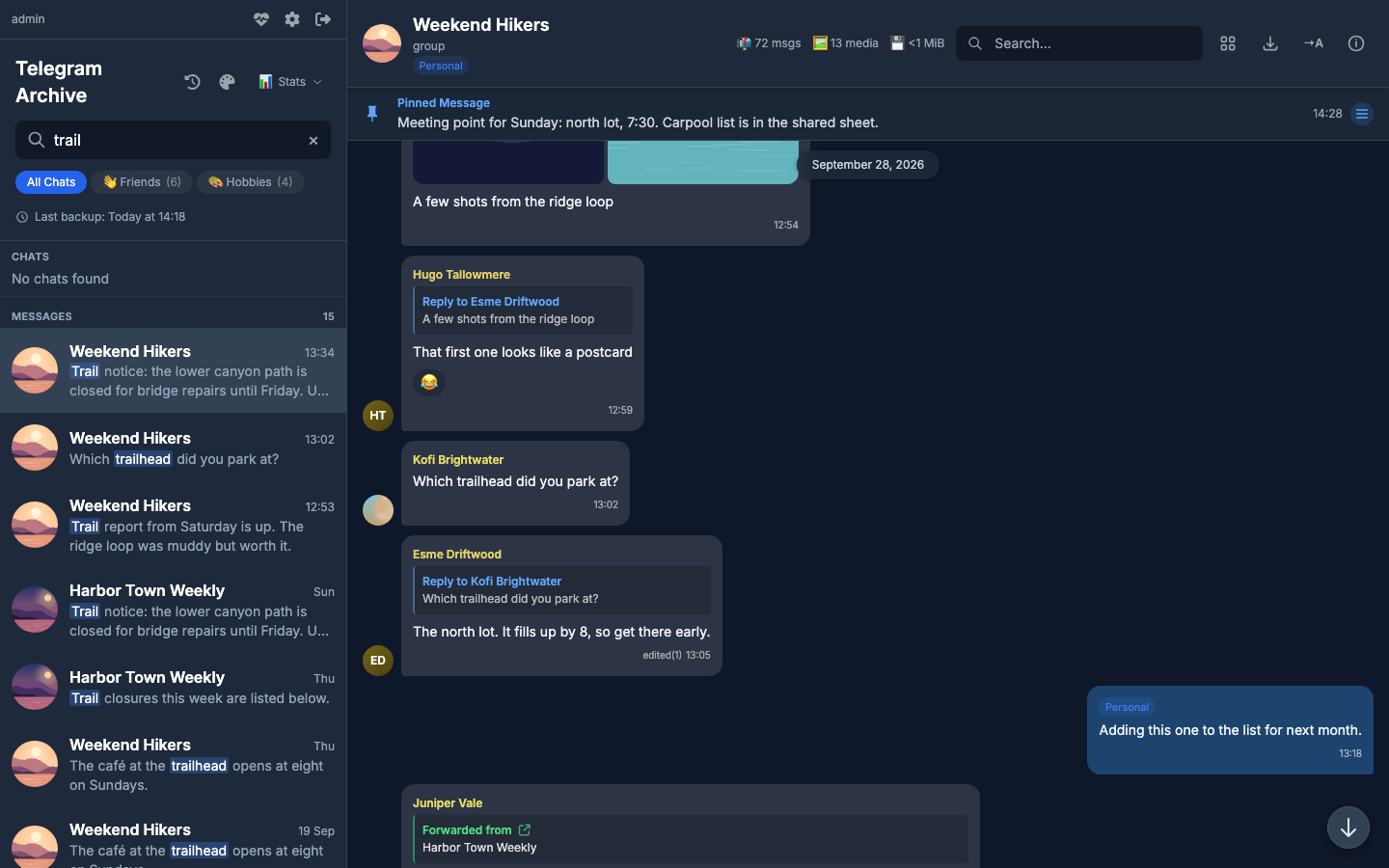
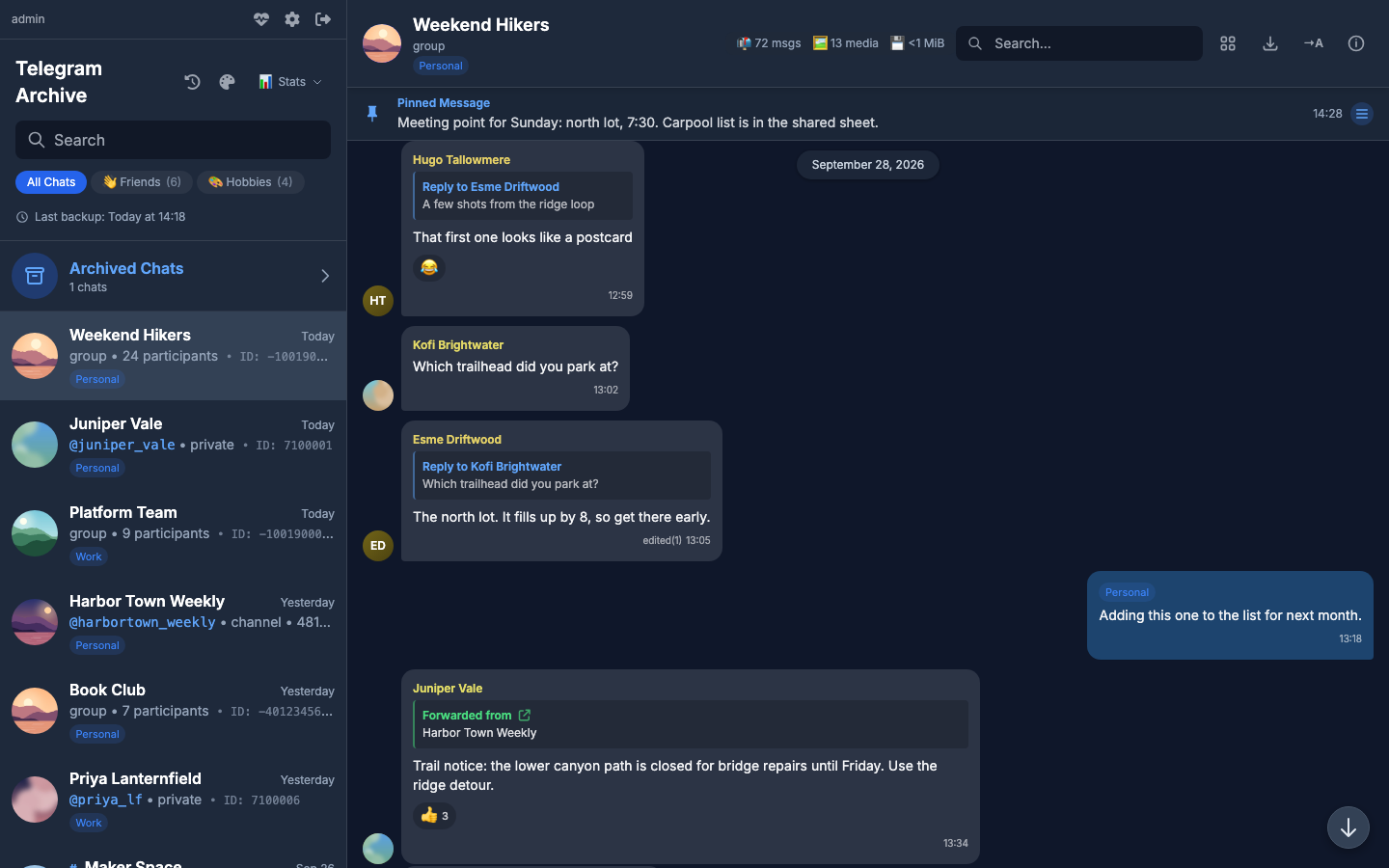
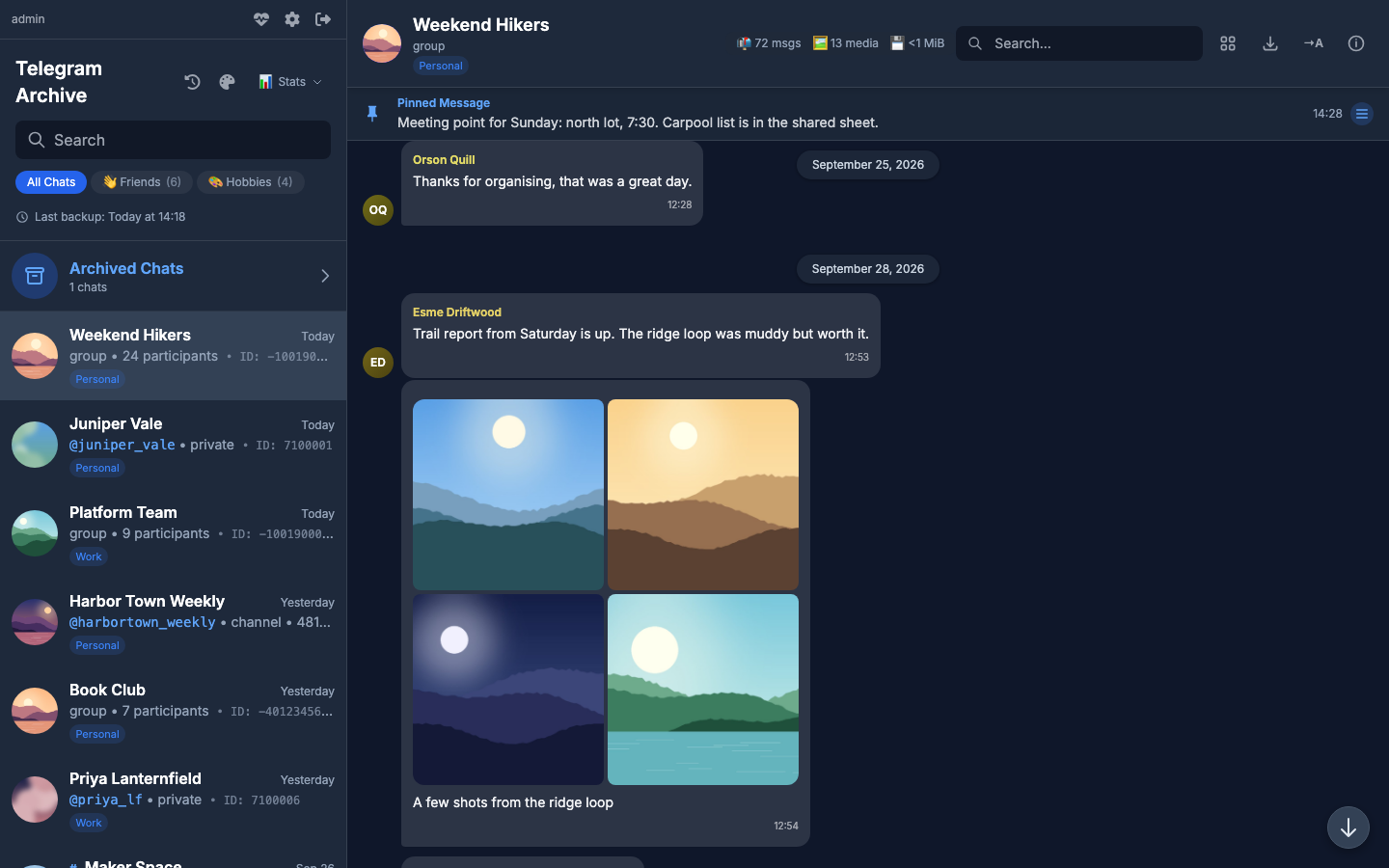
The sidebar on the left holds the chat list and search.
The chat pane in the middle shows the messages of the open chat.
The info panel on the right opens when you click the chat information button in the chat header.
The viewer only reads the archive. It never contacts Telegram. The interface is in English only.
VIEWER_TIMEZONE sets the time zone for every time the viewer shows. It defaults to Europe/Madrid. If the zone name is unknown, the viewer logs a warning and uses UTC.
On a desktop you can resize the sidebar and the info panel. Drag the handle between two panes, or focus the handle and press Left or Right to move it 16 px at a time.
The top of the sidebar shows folder tabs. All Chats comes first, then one tab per Telegram folder, with the folder's emoji or a folder icon and its chat count. The tabs only appear when the archive holds at least one folder. In All Chats, an Archived Chats row appears when you have archived chats in Telegram.
Chats load 50 at a time. Scroll down and the next 50 load. Each row shows ID: <id>, the chat's Telegram id.
When you can see more than one Telegram account, each row carries a chip with the account's label. See Multiple accounts.
The sidebar also shows Last backup with the time of the most recent backup. When the listener is running, the same line shows Real-time sync with a green dot.
One field at the top of the sidebar searches chats and messages together. Results appear 300 ms after you stop typing.
Chats match on title, first name, last name or username.
Messages use full-text search that matches the start of words. The newest match comes first. Results load 20 at a time as you scroll, and the list stops at 5,000 with "Showing the first 5,000 matches".
Use Up and Down to move through both sections, Enter to open a result, and Esc to clear the field. A second Esc leaves the field.
A hit found in a voice transcript carries the label "Matched in the transcript".
If the archive has no full-text index yet, the message section says so. The index is created by the database migrations, which shipped in 8.3.0. The backup image applies them when its container starts. On a pip install, run telegram-archive migrate. A SQLite build without FTS5 keeps the older substring search.
You can paste a Telegram link into the field. A t.me/c/<id>/<msg> or t.me/<username>/<msg> link opens that message when the chat is in the archive. Otherwise the sidebar says "That link points at a chat this archive does not hold".
Inside an open chat, the search box in the chat header searches that chat only, with the same 300 ms delay.
Messages keep their Telegram formatting: bold, italic, underline, strikethrough, code, preformatted blocks, quotes and spoilers. Click a spoiler, or focus it and press Enter or Space, to reveal it.
Only http, https and tg links are clickable. Mentions are highlighted. Web addresses that start with http:// or https:// become links even without formatting. Email addresses become links when Telegram marked them as such.
A #hashtag or $CASHTAG opens a tag view with three tabs: This Chat, My Messages and All Chats.
Photos and videos sent together render as one grid:
Items
Grid
2
two columns
3
two on top, one below
4
two by two
5 or more
three columns
The caption comes from whichever item carries it. The viewer renders only the first message of an album and does not show reactions on the other messages.
Reactions show as chips with the emoji and, when above one, the count.
An edited message shows "edited", or "edited(N)" when it was edited N times. Click it to open the Versions drawer, which lists up to 100 earlier texts.
A deleted message stays in place, faded, with a "deleted" marker. The archive only learns about deletions when the listener runs with LISTEN_DELETIONS=true or the backup runs with SYNC_DELETIONS_EDITS=true. Both are off by default. With DELETION_MODE=soft, the default, the row is kept and marked. With hard it is removed.
Joins, title changes and other chat events show as centred pills. Click the name of the person who did it to open their details.
When a group was converted to a supergroup, a banner says "This group continues as a supergroup" or "Migrated from
".</p>
<h2 id="moving-through-time">Moving through time<a class="headerlink" href="#moving-through-time" title="Permanent link">¶</a></h2>
<h3 id="pinned-messages">Pinned messages<a class="headerlink" href="#pinned-messages" title="Permanent link">¶</a></h3>
<p>A banner under the chat header shows the current pinned message. When more than one message is pinned, the banner also shows the position as "N of M". Click the text to scroll to that message and move the banner to the next pin. This only works for a pinned message already loaded in the pane. For older pins, click the pin button to open the <strong>Pinned Messages</strong> view.</p>
<h3 id="jump-to-the-newest-message">Jump to the newest message<a class="headerlink" href="#jump-to-the-newest-message" title="Permanent link">¶</a></h3>
<p>A round button with a down arrow appears in the bottom right corner. It shows when you scroll more than 200 px above the newest message, or when new messages arrive that you have not seen. A badge counts the unseen messages, up to 99+. Click it to return to the newest message.</p>
<h3 id="jump-to-a-date">Jump to a date<a class="headerlink" href="#jump-to-a-date" title="Permanent link">¶</a></h3>
<p>While you scroll, a pill at the top of the pane shows the day you are looking at. Click it, or any date separator, to open <strong>Jump to Date</strong>. Days that have messages carry a dot. The latest date you can pick is today in <code>VIEWER_TIMEZONE</code>. Press <kbd>Esc</kbd> to close the dialog.</p>
<h3 id="links-to-a-message">Links to a message<a class="headerlink" href="#links-to-a-message" title="Permanent link">¶</a></h3>
<p>Every message has an address of the form <code>/?chat=<ref>&msg=<id></code>. Opening it loads the chat around that message.</p>
<p>To get the link, select the message with the info panel open, or open the sender's details, and click <strong>Copy message link</strong>. On a plain <code>http</code> address the browser does not allow copying, so the link appears in a notice instead.</p>
<p>The link names the chat by its chat ref, not its Telegram chat id. A chat ref is a random 22-character handle that never changes.</p>
<h2 id="forum-topics">Forum topics<a class="headerlink" href="#forum-topics" title="Permanent link">¶</a></h2>
<p>Opening a forum shows its topics first. Each topic has its icon, a pinned or closed marker when it applies, and its message count. Topic 1 is <strong>General</strong>. When the archive holds no topics for the forum, a <strong>View all messages</strong> button opens the whole chat.</p>
<p><img alt="A forum with its topics in the sidebar and one topic open" src="../../images/screenshots/topics.png" /></p>
<h2 id="shared-media">Shared media<a class="headerlink" href="#shared-media" title="Permanent link">¶</a></h2>
<p>The <strong>Shared Media Gallery</strong> button in the chat header opens the chat's files in three tabs:</p>
<table>
<thead>
<tr>
<th>Tab</th>
<th>Holds</th>
</tr>
</thead>
<tbody>
<tr>
<td>Photos & Videos</td>
<td>photos, videos, GIFs and round videos, as a grid</td>
</tr>
<tr>
<td>Voice</td>
<td>voice messages and audio, with a filter box that matches the file name or the transcript</td>
</tr>
<tr>
<td>Files</td>
<td>documents, each with download and go-to-message buttons</td>
</tr>
</tbody>
</table>
<p>Items load 50 at a time. Click <strong>Load more</strong> for the next page.</p>
<p>Photos, videos and GIFs open in the lightbox. A round video tile jumps to its message. Press <kbd>Esc</kbd> to close the lightbox and <kbd>Left</kbd> or <kbd>Right</kbd> to move between items. Files have a download button and a go-to-message button. Download buttons are hidden for <a href="../access/#no-download-logins">no-download logins</a>.</p>
<p>How thumbnails are made and cached is on <a href="../../configuration/media/">Media downloads</a>.</p>
<p><img alt="Shared Media with the Photos & Videos tab open" src="../../images/screenshots/media-gallery.png" /></p>
<h2 id="info-panel">Info panel<a class="headerlink" href="#info-panel" title="Permanent link">¶</a></h2>
<p>The info panel shows the open chat:</p>
<ul>
<li>avatar, name, and member or subscriber count</li>
<li>earlier profile photos the archive recorded</li>
<li>description or bio, username and Telegram ID</li>
<li>account chips, when more than one account is visible</li>
<li>shortcuts into the shared media</li>
</ul>
<p>With the panel open, click a message to select it. The panel then also shows:</p>
<ul>
<li>sender</li>
<li>sent time</li>
<li>edit time</li>
<li>the message it replies to</li>
<li>forward source</li>
<li>message id</li>
<li>album id</li>
<li>pinned or deleted state</li>
<li>its files, with a download button</li>
</ul>
<p>With the panel open, <kbd>Up</kbd> and <kbd>Down</kbd> move the selection to the next message, and <kbd>Esc</kbd> closes the panel.</p>
<p>The master login also sees each file's <strong>Archive path</strong> and a <strong>Copy path</strong> button. Other logins do not.</p>
<h3 id="open-and-show-in-folder">Open and Show in folder<a class="headerlink" href="#open-and-show-in-folder" title="Permanent link">¶</a></h3>
<p>Two more buttons, <strong>Open</strong> and <strong>Show in folder</strong>, appear for the master login when the viewer host sets <code>MEDIA_OPEN_CMD</code> or <code>MEDIA_OPEN_PATH_CMD</code>. Use them only when the viewer runs directly on your own computer, outside Docker.</p>
<p>Each variable holds a shell command. The viewer replaces <code>%PATH%</code>, <code>%DIR%</code> and <code>%FILENAME%</code> with the shell-quoted file path, its folder and its name. <strong>Open</strong> only accepts images, videos, audio and PDF files.</p>
<div class="highlight"><pre><span></span><code><a id="__codelineno-0-1" name="__codelineno-0-1" href="#__codelineno-0-1"></a><span class="c1"># macOS example for a native run</span>
<a id="__codelineno-0-2" name="__codelineno-0-2" href="#__codelineno-0-2"></a><span class="nb">export</span><span class="w"> </span><span class="nv">MEDIA_OPEN_CMD</span><span class="o">=</span><span class="s1">'open %PATH%'</span>
<a id="__codelineno-0-3" name="__codelineno-0-3" href="#__codelineno-0-3"></a><span class="nb">export</span><span class="w"> </span><span class="nv">MEDIA_OPEN_PATH_CMD</span><span class="o">=</span><span class="s1">'open -R %PATH%'</span>
</code></pre></div>
<div class="admonition warning">
<p class="admonition-title">These buttons run a shell command on the viewer host</p>
<p>Anyone who can use them runs that command. See <a href="../exposing/#commands-that-run-on-the-viewer-host">Commands that run on the viewer host</a>.</p>
</div>
<h2 id="audio-player">Audio player<a class="headerlink" href="#audio-player" title="Permanent link">¶</a></h2>
<p>Playing a voice message or an audio file opens one player bar for the whole app. It has previous and next buttons, a seek bar and speeds of 0.5x, 1x, 1.5x and 2x. The speed buttons are hidden on screens narrower than 640 px.</p>
<p>Voice and music each keep their own speed. Playback continues when you switch chats. When one item ends, the player moves on to the next audio in the chat.</p>
<p><a href="../access/#no-download-logins">No-download logins</a> cannot play audio. Their play buttons are disabled and the player bar does not appear.</p>
<h2 id="what-changed">What changed<a class="headerlink" href="#what-changed" title="Permanent link">¶</a></h2>
<p>The clock button in the sidebar header opens <strong>What changed</strong>. It lists deletions, edits and new voice transcripts, newest first. Pick a window of <strong>Last 24 hours</strong>, <strong>7 days</strong>, <strong>30 days</strong> or <strong>All time</strong>. Entries load 50 at a time.</p>
<p>Deletions appear here only when the archive learns about them: the listener runs with <code>LISTEN_DELETIONS=true</code> or the backup runs with <code>SYNC_DELETIONS_EDITS=true</code>. Both are off by default. With <code>DELETION_MODE=hard</code> a deleted row is removed instead of kept.</p>
<h2 id="export-a-chat">Export a chat<a class="headerlink" href="#export-a-chat" title="Permanent link">¶</a></h2>
<p>The <strong>Export Chat to JSON</strong> button in the chat header downloads the open chat as a JSON file. You can set a from date, a to date, both or neither. A to date on its own includes that whole day.</p>
<p>The file is named <code><title>_export.json</code>. It holds the chat, the filters you used, the messages and their earlier versions. It holds no media files.</p>
<p><a href="../access/#no-download-logins">No-download logins</a> cannot export.</p>
<h2 id="statistics">Statistics<a class="headerlink" href="#statistics" title="Permanent link">¶</a></h2>
<p>The <strong>Stats</strong> dropdown in the sidebar header shows the number of chats, messages and media files, the storage used and when the numbers were calculated. The dropdown appears once the numbers have been calculated for the first time.</p>
<p>The numbers are cached. These recalculate them:</p>
<ul>
<li>The viewer, once a day at <code>STATS_CALCULATION_HOUR</code> in <code>VIEWER_TIMEZONE</code>. The default hour is 3.</li>
<li>The viewer, once at startup, if the numbers were never calculated.</li>
<li>The backup, after each run.</li>
<li>The master login, on request, through <code>POST /api/stats/refresh</code>.</li>
</ul>
<p>Logins restricted to some chats see counts for their own chats only. The message, media and size figures in a chat's header are cached for 60 seconds.</p>
<p><code>SHOW_STATS=false</code> hides the dropdown. The statistics API still answers.</p>
<div class="admonition note">
<p class="admonition-title">Setting the stats hour under Docker</p>
<p>The stock <code>docker-compose.yml</code> does not pass <code>STATS_CALCULATION_HOUR</code> to the viewer. Add it to the viewer's <code>environment:</code> block. See <a href="../../reference/environment-variables/">Environment variables</a>.</p>
</div>
<h3 id="archive-status">Archive status<a class="headerlink" href="#archive-status" title="Permanent link">¶</a></h3>
<p>The master login has an <strong>Archive Status</strong> button, the heart icon next to the user name at the top of the sidebar. It opens a panel with:</p>
<table>
<thead>
<tr>
<th>Row</th>
<th>Shows</th>
</tr>
</thead>
<tbody>
<tr>
<td>Backup</td>
<td>running now, the time of the last run, or never ran</td>
</tr>
<tr>
<td><a href="../../configuration/listener/">Listener</a>, one row per Telegram account</td>
<td>active since when, or not running</td>
</tr>
<tr>
<td>Media pipeline</td>
<td>files downloaded, pending, given up and skipped by settings</td>
</tr>
<tr>
<td>Stats freshness</td>
<td>when the statistics were last calculated</td>
</tr>
<tr>
<td>Transcription</td>
<td>off, on with no server configured, server not detected yet, or the server's name and version</td>
</tr>
<tr>
<td>Database</td>
<td>SQLite or PostgreSQL, and its size</td>
</tr>
</tbody>
</table>
<h2 id="on-a-phone">On a phone<a class="headerlink" href="#on-a-phone" title="Permanent link">¶</a></h2>
<p>Below 768 px wide, the layout changes:</p>
<ul>
<li>The sidebar hides once a chat is open, and the chat takes the full width.</li>
<li>A back button in the chat header returns to the chat list.</li>
<li>The info panel covers the whole screen.</li>
<li>Header buttons get 44 px touch targets.</li>
<li>The resize handles are hidden.</li>
</ul>
<p><img alt="The chat list on a phone" src="../../images/screenshots/chat-list-mobile.png" width="300" /></p>
<h2 id="install-as-an-app">Install as an app<a class="headerlink" href="#install-as-an-app" title="Permanent link">¶</a></h2>
<p>Browsers that support it can install the viewer as an app. It then opens in its own window without the browser toolbar.</p>
<p>It does not work offline. The app needs the viewer to be reachable, as the web page does.</p>
<p>After you upgrade the viewer, reload any open tabs or app windows. An open page keeps using the old version until it reloads.</p>
<h2 id="keyboard">Keyboard<a class="headerlink" href="#keyboard" title="Permanent link">¶</a></h2>
<table>
<thead>
<tr>
<th>Key</th>
<th>Where</th>
<th>Does</th>
</tr>
</thead>
<tbody>
<tr>
<td><kbd>Esc</kbd></td>
<td>search field</td>
<td>clears the field, then leaves it</td>
</tr>
<tr>
<td><kbd>Esc</kbd></td>
<td>info panel, lightbox, Versions drawer, Jump to Date, sender details</td>
<td>closes it</td>
</tr>
<tr>
<td><kbd>Up</kbd> <kbd>Down</kbd></td>
<td>search results</td>
<td>moves between chats and messages</td>
</tr>
<tr>
<td><kbd>Up</kbd> <kbd>Down</kbd></td>
<td>open info panel</td>
<td>selects the previous or next message</td>
</tr>
<tr>
<td><kbd>Left</kbd> <kbd>Right</kbd></td>
<td>lightbox</td>
<td>previous or next item</td>
</tr>
<tr>
<td><kbd>Left</kbd> <kbd>Right</kbd></td>
<td>focused resize handle</td>
<td>resizes the pane by 16 px</td>
</tr>
<tr>
<td><kbd>Enter</kbd></td>
<td>search results</td>
<td>opens the highlighted result</td>
</tr>
<tr>
<td><kbd>Enter</kbd> <kbd>Space</kbd></td>
<td>spoiler, round video</td>
<td>reveals the spoiler, toggles the sound</td>
</tr>
<tr>
<td><kbd>Tab</kbd></td>
<td>Jump to Date, sender details</td>
<td>stays inside the dialog</td>
</tr>
</tbody>
</table>
<p>There are no single-letter shortcuts such as <code>j</code> and <code>k</code>.</p>
</article>
</div>
<script>var target=document.getElementById(location.hash.slice(1));target&&target.name&&(target.checked=target.name.startsWith("__tabbed_"))</script>
</div>
<button type="button" class="md-top md-icon" data-md-component="top" hidden>
<svg xmlns="http://www.w3.org/2000/svg" viewBox="0 0 24 24"><path d="M13 20h-2V8l-5.5 5.5-1.42-1.42L12 4.16l7.92 7.92-1.42 1.42L13 8z"/></svg>
Back to top
</button>
</main>
<footer class="md-footer">
<div class="md-footer-meta md-typeset">
<div class="md-footer-meta__inner md-grid">
<div class="md-copyright">
Made with
<a href="https://squidfunk.github.io/mkdocs-material/" target="_blank" rel="noopener">
Material for MkDocs
</a>
</div>
<div class="md-social">
<a href="https://github.com/GeiserX/Telegram-Archive" target="_blank" rel="noopener" title="github.com" class="md-social__link">
<svg xmlns="http://www.w3.org/2000/svg" viewBox="0 0 512 512"><!--! Font Awesome Free 7.1.0 by @fontawesome - https://fontawesome.com License - https://fontawesome.com/license/free (Icons: CC BY 4.0, Fonts: SIL OFL 1.1, Code: MIT License) Copyright 2025 Fonticons, Inc.--><path d="M173.9 397.4c0 2-2.3 3.6-5.2 3.6-3.3.3-5.6-1.3-5.6-3.6 0-2 2.3-3.6 5.2-3.6 3-.3 5.6 1.3 5.6 3.6m-31.1-4.5c-.7 2 1.3 4.3 4.3 4.9 2.6 1 5.6 0 6.2-2s-1.3-4.3-4.3-5.2c-2.6-.7-5.5.3-6.2 2.3m44.2-1.7c-2.9.7-4.9 2.6-4.6 4.9.3 2 2.9 3.3 5.9 2.6 2.9-.7 4.9-2.6 4.6-4.6-.3-1.9-3-3.2-5.9-2.9M252.8 8C114.1 8 8 113.3 8 252c0 110.9 69.8 205.8 169.5 239.2 12.8 2.3 17.3-5.6 17.3-12.1 0-6.2-.3-40.4-.3-61.4 0 0-70 15-84.7-29.8 0 0-11.4-29.1-27.8-36.6 0 0-22.9-15.7 1.6-15.4 0 0 24.9 2 38.6 25.8 21.9 38.6 58.6 27.5 72.9 20.9 2.3-16 8.8-27.1 16-33.7-55.9-6.2-112.3-14.3-112.3-110.5 0-27.5 7.6-41.3 23.6-58.9-2.6-6.5-11.1-33.3 2.6-67.9 20.9-6.5 69 27 69 27 20-5.6 41.5-8.5 62.8-8.5s42.8 2.9 62.8 8.5c0 0 48.1-33.6 69-27 13.7 34.7 5.2 61.4 2.6 67.9 16 17.7 25.8 31.5 25.8 58.9 0 96.5-58.9 104.2-114.8 110.5 9.2 7.9 17 22.9 17 46.4 0 33.7-.3 75.4-.3 83.6 0 6.5 4.6 14.4 17.3 12.1C436.2 457.8 504 362.9 504 252 504 113.3 391.5 8 252.8 8M105.2 352.9c-1.3 1-1 3.3.7 5.2 1.6 1.6 3.9 2.3 5.2 1 1.3-1 1-3.3-.7-5.2-1.6-1.6-3.9-2.3-5.2-1m-10.8-8.1c-.7 1.3.3 2.9 2.3 3.9 1.6 1 3.6.7 4.3-.7.7-1.3-.3-2.9-2.3-3.9-2-.6-3.6-.3-4.3.7m32.4 35.6c-1.6 1.3-1 4.3 1.3 6.2 2.3 2.3 5.2 2.6 6.5 1 1.3-1.3.7-4.3-1.3-6.2-2.2-2.3-5.2-2.6-6.5-1m-11.4-14.7c-1.6 1-1.6 3.6 0 5.9s4.3 3.3 5.6 2.3c1.6-1.3 1.6-3.9 0-6.2-1.4-2.3-4-3.3-5.6-2"/></svg>
</a>
<a href="https://hub.docker.com/r/drumsergio/telegram-archive" target="_blank" rel="noopener" title="hub.docker.com" class="md-social__link">
<svg xmlns="http://www.w3.org/2000/svg" viewBox="0 0 640 512"><!--! Font Awesome Free 7.1.0 by @fontawesome - https://fontawesome.com License - https://fontawesome.com/license/free (Icons: CC BY 4.0, Fonts: SIL OFL 1.1, Code: MIT License) Copyright 2025 Fonticons, Inc.--><path d="M349.9 236.3h-66.1v-59.4h66.1zm0-204.3h-66.1v60.7h66.1zm78.2 144.8H362v59.4h66.1zm-156.3-72.1h-66.1v60.1h66.1zm78.1 0h-66.1v60.1h66.1zm276.8 100c-14.4-9.7-47.6-13.2-73.1-8.4-3.3-24-16.7-44.9-41.1-63.7l-14-9.3-9.3 14c-18.4 27.8-23.4 73.6-3.7 103.8-8.7 4.7-25.8 11.1-48.4 10.7H2.4c-8.7 50.8 5.8 116.8 44 162.1 37.1 43.9 92.7 66.2 165.4 66.2 157.4 0 273.9-72.5 328.4-204.2 21.4.4 67.6.1 91.3-45.2 1.5-2.5 6.6-13.2 8.5-17.1zm-511.1-27.9h-66v59.4h66.1v-59.4zm78.1 0h-66.1v59.4h66.1zm78.1 0h-66.1v59.4h66.1zm-78.1-72.1h-66.1v60.1h66.1z"/></svg>
</a>
</div>
</div>
</div>
</footer>
</div>
<div class="md-dialog" data-md-component="dialog">
<div class="md-dialog__inner md-typeset"></div>
</div>
<script id="__config" type="application/json">{"annotate": null, "base": "../..", "features": ["navigation.tabs", "navigation.sections", "navigation.expand", "navigation.top", "content.code.copy", "content.action.edit", "search.highlight", "search.suggest", "toc.follow"], "search": "../../assets/javascripts/workers/search.2c215733.min.js", "tags": null, "translations": {"clipboard.copied": "Copied to clipboard", "clipboard.copy": "Copy to clipboard", "search.result.more.one": "1 more on this page", "search.result.more.other": "# more on this page", "search.result.none": "No matching documents", "search.result.one": "1 matching document", "search.result.other": "# matching documents", "search.result.placeholder": "Type to start searching", "search.result.term.missing": "Missing", "select.version": "Select version"}, "version": null}</script>
<script src="../../assets/javascripts/bundle.d7400e89.min.js"></script>
</body>
</html>